Export and download any file from SAS Enterprise Guide

Last week I alluded to some very useful applications of the Copy Files task. This is one of them.

Using the SAS programming language, you can manipulate data and create files of just about any size, shape, and format: Excel, PDF, CSV, RTF, and more. A challenge for SAS Enterprise Guide users has been: how to capture those files and bring them back to your local PC, when the SAS Workspace is running on a remote machine?

Example: Export to a CSV file and download the result

Here's a typical scenario: You have a simple SAS program that produces one or more CSV files that you will ultimately use in another program. How can you get the CSV files to your PC automatically?

STEP 1: Build a program step to create the CSV file
This program is easy to adapt for any data set and environment. It works on Windows and UNIX. All you need to know is the library and member name of the data that you want to export, and then the destination folder for your local PC. The program will perform the export operation, stage the CSV file in a temp location, and define the macro variables that the next step will use.

/* Data to export */
%let lib  =         sashelp;
%let datafile =     class;
 
/* Local folder to download to */ 
%let download_to =  c:\projects\data\results;
 
/* detect proper delim for UNIX vs. Windows */
%let delim=%sysfunc(ifc(%eval(&sysscp. = WIN),\,/));
 
%let download_from =
  %sysfunc(getoption(work))&delim.&datafile..csv;
 
filename src "&download_from.";
 
proc export data=&lib..&datafile.
  dbms=csv 
  file=src
  replace;
run;
 
filename src clear;

STEP 2: Use Copy Files task to download the result
The Copy Files task accepts SAS macro expressions. That's a key feature, as the macro variables we need are defined in the previous program step. Here's a screen shot of the task settings:

This makes the use of the Copy Files task very "generic". In fact, you can create a Task Template that defines these exact task settings, and thus always have it available on your Tasks menu directly.

STEP 3: Link these steps together in a process flow
Create a user-defined link between the program and the task, ensuring that they will run in the correct sequence.

THAT'S IT!
The power of SAS and the flexibility of the Copy Files task really makes this a simple operation. However, you might want to consider a few variations:

  • Export and download a collection of files in one step. With minor mods to the SAS program, you can loop through a collection of SAS data sets and export multiple CSV files. Instead of defining a single file to download, set the &DOWNLOAD_FROM variable to a file spec with a wildcard. The Copy Files task can handle wildcard notation -- no problem. (Well, no problem anymore, as long as you grab this update.)

    /* specify a wildcard */
    %let download_from =
      %sysfunc(getoption(work))&delim.%str(*).csv;
     
    /* file to create in step */
    filename src "%sysfunc(getoption(work))&delim.&datafile..csv";
  • Add a date stamp to your results file. You might have a requirement to keep older versions of your results. With a simple adjustment to the macro expression, you can append a date stamp to the files you create. This will ensure that even if you download the results to the same location each day, the previous results will not be replaced. When you download the file, the name with the date stamp will be intact.
    filename src 
     "%sysfunc(getoption(work))&delim.&datafile._%trim(%sysfunc(today(),date9.)).csv";

    Sample result from this step:

    NOTE: The file SRC is:
          Filename=/sas/work/class_19MAY2013.csv,
    

This is just one example of the useful things you can do with the Copy Files task. SAS users are a creative bunch. What other uses can you think of for this task?

Related articles

Copying files in SAS Enterprise Guide
Fixes for the Copy Files task in SAS Enterprise Guide

Post a Comment

Special steps for installing the custom tasks that you download

Recent versions of SAS Enterprise Guide (version 5.1 and later) use Microsoft .NET 4.0, which enforces additional security requirements before running custom task DLLs that you download from the Web, including those that you download from support.sas.com. Because these task DLLs are downloaded from the (big and scary) Internet, the Microsoft .NET runtime does not automatically "trust" them as it would trust a properly installed application. To enable the task to run, you must first "unblock" the file using Windows Explorer.

  1. Using Windows Explorer, browse to the assembly (DLL) that you downloaded from the samples and extracted from the Zip file.
  2. Right-click on the DLL file, and from the shortcut menu, select Properties.
    The Properties dialog box opens.
  3. On the General tab, click Unblock to indicate that this DLL is trusted
    (Note: the Unblock button will not appear if the assembly is already unblocked and available.)
  4. Click OK to close the Properties dialog box.

If the DLL is blocked when you try to add it in SAS Enterprise Guide, you might see a message such as the following, and the task will not appear in the Tools->Add-Ins menu:

Unable to load program .... 
Could not load file or assembly 'SAS.Tasks.Examples' or 
  one of its dependencies

You can read more about this security feature and behavior in this Microsoft Knowledge Base article. If you build your own custom tasks (for example, by using the example projects and source code), you will not need to unblock the DLLs as you build them.

Related articles

Custom tasks for SAS Enterprise Guide: Q & A
Introduction to SAS Custom Tasks [SAS Talks webinar]
Custom Tasks for SAS Enterprise Guide using Microsoft .NET

Post a Comment

An FTP-style task in SAS Enterprise Guide: user-driven fixes

A few months ago I released the Copy Files task for use with SAS Enterprise Guide. The task allows you to transfer any files between your PC and a SAS Workspace session, much like an FTP process. It doesn't rely on FTP though; it uses a combination of SAS code, Windows APIs, and SAS Integration Technologies to get the job done.

It's proven to be a very popular task, because it can be useful in so many situations. It even earned a mention in a SAS Global Forum paper this year (and no, it wasn't a paper that I wrote).

Today I'm going to point out the things that the task doesn't do so well. Or at least, that it didn't do well until I made some updates. My changes were based on two "complaints" from several SAS users.

Read on for the details. But if you don't care and you just want the latest version of the task, you can download it from here.

Complaint #1: Wildcards that are a little too "wild"

The task allows you to use wildcard characters in your file specifications so that you can match multiple files to transfer. A problem occurs though, when your file specification looks like this:

/usr/local/data/*.xls

Can you guess the problem? What if I told you that the task stores your file specification in a SAS macro variable? Yep, it's that "/*" sequence in the value that trips things up, because SAS interprets it as the start of a comment. Left unchecked, this sabotages the remainder of the SAS code that is included in the process.

The SAS macro experts are already shouting out the answer to fix this: use %STR to wrap the slash and "hide" the token from the SAS parser. That's a great idea! Except that the task relies on the SAS "internal" value for this value --and not the displayed value -- when it comes time to process. These values are different when %STR wraps a special character like the forward slash. The macro facility changes out this character with a hexadecimal character called a delta character.

To illustrate, I used another popular custom task -- the SAS Macro Variable Viewer -- to show the inner value of a SAS macro variable:

Notice the funky arrow characters. Is that what you were expecting?

Now the task detects the presence of a forward slash (and some other special characters) and will automatically add the %STR so you don't have to. (But you can still use %STR if you want to.) And it correctly detects the delta characters, if present, to convert them back to their correct form before trying to use the value.

Complaint #2: Fixing line-ending characters but breaking other stuff

Users of FTP might be familiar with binary versus ASCII mode for file transfers. Because UNIX line-endings are different than Windows line-endings for text files, transferring a file in ASCII mode helps to ensure proper line-ending behavior for the target host.

The Copy Files task transfers ALL files using a binary mode. Why? Because in today's global workplace even text-based files often don't adhere to the limited English-centric ASCII standard. Attempting a text-based file transfer could result in encoding mismatches, so it's much safer to transfer content as "binary blobs".

But you still want your text files to have the proper line endings for the target host. To answer that, the Copy Files task offers a "Fix line-ending characters" option that does the following:

  • Scans the file to determine whether it's a text file. (This relies on the file content and not on special file extensions such as .TXT or .CSV.).
  • Rewrites the file and replaces the line-ending characters as needed for the target file system (Windows or UNIX).

The problem was that in rewriting the file (using Windows-based StreamReader and StreamWriter functions), the Copy Files task was changing the file encoding to UTF-8. That encoding works fine on Windows and most users didn't even notice. But some users sent me output from file dump tools and comparisons that showed the byte-order mark characters that were added to the file. (SAS users: I knew I could count on you!)

To address this, I changed the "fix line endings" process to use lower level I/O functions that simply scan through the text files as a binary stream, byte-for-byte, and change the line endings as needed. Trying to decide on proper encoding is risky business, so I decided to leave the character encoding untouched.

In addition to my own testing, a couple of users out there have confirmed that my changes fix the issues -- at least for now. Thanks for that! If you want to try the latest, get it now from here:

>> Download the Copy Files task

Related articles

Copying files in SAS Enterprise Guide
Inspecting SAS macro variables in SAS Enterprise Guide

Post a Comment

SAS Enterprise Guide: for all of the hats that you wear, you're covered

Even though it's been around for well over a decade, SAS Enterprise Guide was still a hot topic among attendees at SAS Global Forum this year.

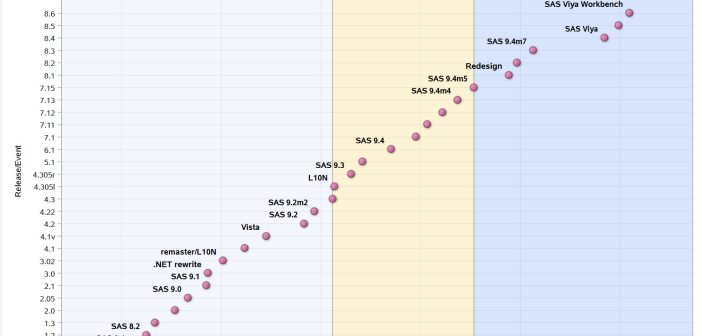
In the Technology Connection -- the big session on Monday morning -- SAS R&D staff used the conference agenda content to demonstrate the power of SAS Text Miner. By categorizing the papers for this year and comparing to previous years, you can see the continued growing interest in several key topics, including SAS Enterprise Guide.

I captured this (grainy) screenshot from the Livestream archive of the Technology Connection. Enterprise Guide papers are represented by the yellow bar in this screen shot from SAS Visual Analytics, showing 4 years of conference data:

I presented one of those papers: For All the Hats You Wear: SAS Enterprise Guide Has Got You Covered. In the presentation (which you can watch on SAS Global Forum Take-out), I describe several types of users who accomplish work in SAS Enterprise Guide, including:

  • The Newbie
  • The Business Analyst
  • The Programmer
  • The Statistician
  • The Data Scientist
  • The Administrator
  • The Consultant

I've done my share of blogging and presenting about SAS Enterprise Guide over the years, but with over 80 papers or posters that addressed it at this year's conference, it's obvious that others are also keen to share their experiences. That's great, because I have an obvious bias when I describe SAS Enterprise Guide as an essential tool for SAS users; you no longer have to simply take my word for it.

I've also seen others sharing on their own blogs. For example, here's a series from the bi-notes.com blog:

And another series from OptimalBI in New Zealand:

I'm happy to see that the SAS user community now creates, sustains, and propagates some really excellent information on these topics. Keep up the great work!

Post a Comment

SAS Global Forum shows "Strength in Numbers"

What a conference so far...

SAS Global Forum is now in full swing, and the two big sessions (Opening Session last night, and the Tech Session this morning) have been packed with impressive material. The attendees I've spoken with have been suitably impressed and enthused. You can view the sessions all on the Livestream channels.

I'll post more when I have a chance, but for now you can follow along on the SAS Users Groups blog, the Twitter stream, and on the Livestream.

Now it's almost time for me to hit the makeshift studio and broadcast the first of two SAS Tech Talks. Tune in if you can!

Post a Comment

SAS Global Forum Take-Out: Fast food for your SAS appetite

SAS Global Forum is like a BIG buffet of SAS knowledge, all served up in just a few days. There are so many good presentations and activities, but you cannot fit them all on your plate. You have to choose.

To make the choices easier, the SAS Global Forum committee has assembled a collection of presentations that you can take "to go". It's called SAS Global Forum Take-Out. (In some countries, you might prefer the term "take-away" -- but you get the idea.)

Hosted at Brainshark.com, these presentations are "performed" by the actual authors of select SAS Global Forum papers. You can view the slides and notes, and listen to the expert present the material -- whenever and wherever you want. And these are available to everyone -- even if you can't attend the conference.

I was fortunate enough to have a presentation selected to be part of Take-Out. It's called For All of the Hats You Wear: SAS Enterprise Guide Has Got You Covered.

I hope that I have a full and lively audience for my presentation at the conference. But I'm happy that the work I've assembled can "live on" and reach a wider set of people around the world. With Take-Out, you can always reach into the back of the SAS Global Forum "fridge" and find something fresh for your brain to munch on.

Links

SAS Global Forum Take-Out presentations on Brainshark.com

Post a Comment

SAS Tech Talks: Watch them live during SAS Global Forum

Even if you cannot attend SAS Global Forum next week, you can experience it virtually via the Livestream sessions.

This year I will reprise my role as host of SAS Tech Talks, a pair of live webcasts that feature SAS R&D professionals and their latest technological wares. Click "play" on the viewer below to see what's happening right now. Below this widget, you can see the scheduled SAS Tech Talks lineup. (Note that scheduled times are in the Pacific USA timezone -- coming to you from San Francisco!)

Watch live streaming video from sasglobalforum at livestream.com


Monday, April 29 at 12:30 p.m. PT

SAS Web Editor
Mike Monaco, Director, Web SAS Technologies R&D

SAS Visual Analytics Explorer
Falko Schulz, Principal Software Developer, SAS BI Visualization R&D

SAS Mobile BI
Himesh Patel, Senior Director, SAS Data Visualization R&D

SAS program language advancements
Rick Langston, Senior Manager, SAS Platform R&D

DataFlux and Data Integration
Nancy Rausch, Senior Manager, SAS Data Management R&D

Tuesday, April 30 at 10:30 a.m. PT

SAS Marketing Automation
Brian Chick, Senior Manager, Customer Intelligence R&D

SAS App Works
Marty Tomasi, Director, SAS Middle Tier Platform R&D

ODS Graphics
Sanjay Matange, Director, SAS Scientific Visualization R&D

SAS Visual Statistics
Tonya Balan, Director, SAS Analytics Product Management

I've known most of these folks for a long time, and according to my quick math they possess well over 150 years of SAS experience (cumulatively, that is -- not each). And they all still work on cutting-edge projects that you'll want to learn more about!

Post a Comment

The important people you meet at SAS Global Forum

In the SAS User Groups LinkedIn group, some generous "old timers" offer tips to the potentially shy newcomers for connecting with other SAS professionals at SAS Global Forum. Perhaps these folks remember their own introverted natures, and they want to encourage attendees to get the most out of their conference experience.

One group participant, David Corliss, offered an inspiring (but not unusual!) account of how he met a fellow SAS user whose specific job has a big impact on David's family. I'm sharing the story here (with David's permission).

So, I just have to tell this story about meeting a first-timer at [SAS Global Forum] 2012. I was standing in line to buy a bagel at the hotel convenience store. The person in front of me saw my badge with the tags for speaker and session coordinator - he figured I had been around a little and wondered if I would look at his schedule and make any recommendations.

Naturally, I asked what his background was and what he wanted to accomplish. He said he was a statistician with the CDC in Altanta, working on infectious diseases in the third world. Due to cost restrictions, it is common in such places to receive only partial treatments for diseases requiring lengthy treatment, such as TB. His team calculated the effectiveness of these partial treatments and made recommendations to complete the treatment should it become available later on. He wanted my advice on papers and classes to take in so he could do more to save uncounted thousands of lives....

...like that of my own daughter, adopted from Russia at age 7 and exposed to TB as a small child. I owed this first-timer as inestimable debt of gratitude as the person who determined the remedial treatment needed to keep her as safe as possible from developing TB later on.

At [SAS Global Forum], whether you are a first timer or have been there for years and years, be sure to meet as many people as you can. You never know who you are going to meet.

It's true -- you never know. I'm inspired by SAS users at every conference I attend. I hope to see you there -- and to be inspired again!

Post a Comment

Getting Started with SAS - now available for viewing

Getting Started with SAS -- a free webinar for new SAS users -- is now available for on-demand viewing.

During this SAS Talks session, Stacey Syphus and I review the basics of what SAS is, what people use it for, and what you can expect to see as a new user. We talk about SAS programs: what they look like and what they can be used for. You won't learn how to write programs by watching this short webinar, but you'll at least know a SAS program when you see it.

I also demonstrate two of the most common SAS interfaces:

  • The SAS windowing environment (a.k.a. "display manager", and a.k.a "base SAS")
  • SAS Enterprise Guide

(It's been a long time since I showed off the SAS windowing environment. Within this blog I share lots of information about SAS Enterprise Guide, and don't devote much time to the more traditional interface for SAS. But the fact is each of these tools are in wide use around the world, and a "Getting Started" talk would be incomplete if we didn't include both.)

And as long-time SAS users know, learning to use SAS effectively is more than just learning a skill. It also involves getting "plugged in" to the exceptional SAS user community -- whether that's reading discussion forums, attending user group meetings, or working towards SAS certification.

If you are just getting started with SAS, or if you have colleagues who would appreciate a gentle introduction, give this webinar a try. It could be your first step into an exciting career!

Post a Comment

Using Windows PowerShell to download a file from a SAS Workspace session

In a previous article, I described how to use Windows PowerShell to connect to a remote SAS Workspace, run a SAS program, and retrieve the results. In that example, the only results I retrieved were the SAS log and SAS listing (text) output, if any.

When you run a SAS program on a remote session, sometimes the expected result is more substantial than just a text-based listing. What if your program creates Output Delivery System (ODS) files such as HTML or graphics? To retrieve those results, you need to download the files from the SAS session to your local machine, where your application can access them. Consider this program, implemented in a PowerShell script, which creates an image with PROC SGPLOT:

# change these to your own SAS-session-based
# file path and file name
# Note that $destImg can't be > 7 chars
$destPath = "/projects/results"
$destImg = "hist"

# program to run
# could be read from external file
$program =  
       "ods graphics / imagename='$destImg';
        ods listing gpath='$destPath' style=plateau;
        proc sgplot data=sashelp.cars;
        histogram msrp;
        density msrp;
        run;"

# run the program
$objSAS.LanguageService.Submit($program);

When the program runs, it creates a file named hist.png in the /projects/results folder within the SAS session.

Downloading a file with FileService

The SAS Workspace provides the FileService API, which allows you to transfer file-based content between your local application and the SAS session. As with most file-based operations in SAS, the FileService relies on the use of a SAS fileref, or the name that SAS uses to reference your file within a program. For a file download operation, these are the basic steps:

  • Obtain a SAS reference to the file (FileService AssignFileref method.
  • Tell SAS to open the remote file for reading (OpenBinaryStream method).
  • Read the contents of the file into a local array of bytes (Read method, repeating in 1K increments).
  • Write the contents into a local file (PowerShell objects).
  • When completed, close the local and remote file handles, and unassign the SAS file reference (Close method and DeassignFileref method).

Here's a PowerShell program snippet that implements these steps. (The complete example is available on GitHub.)

# local directory for downloaded file
$localPath = "c:\temp"

# now download the image file
$fileref = ""

# assign a Fileref so we can use FileService from IOM
$objFile = $objSAS.FileService.AssignFileref(
     "img", "DISK", "$destPath/$destImg.png", 
     "", [ref] $fileref);

$StreamOpenModeForReading = 1
$objStream = $objFile.OpenBinaryStream($StreamOpenModeForReading)

# define an array of bytes
[Byte[]] $bytes = 0x0

$endOfFile = $false
$byteCount = 0
$outStream = [System.IO.StreamWriter] "$localPath\$destImg.png"
do
{
  # read bytes from source file, 1K at a time
  $objStream.Read(1024, [ref]$bytes)
  
  # write bytes to destination file
  $outStream.Write($bytes)
  # if less than requested bytes, we're at EOF
  $endOfFile = $bytes.Length -lt 1024
  
  # add to byte count for tally
  $byteCount = $byteCount + $bytes.Length
  
} while (-not $endOfFile)

# close input and output files
$objStream.Close()
$outStream.Close()

# free the SAS fileref
$objSAS.FileService.DeassignFileref($objFile.FilerefName)

Write-Output "Downloaded $localPath\$destImg.png: SIZE = $byteCount bytes"

Here's an excerpt from the output when the script runs:
NOTE: PROCEDURE SGPLOT used (Total process time):
      real time           13.18 seconds
      cpu time            0.12 seconds
      
NOTE: Listing image output written to /projects/result/hist.png.
NOTE: There were 428 observations read from the data set SASHELP.CARS.

Downloaded c:\temp\hist.png: SIZE = 15092 bytes

Related links

Post a Comment