SAS Tech Talks: Watch them live during SAS Global Forum

Even if you cannot attend SAS Global Forum next week, you can experience it virtually via the Livestream sessions.

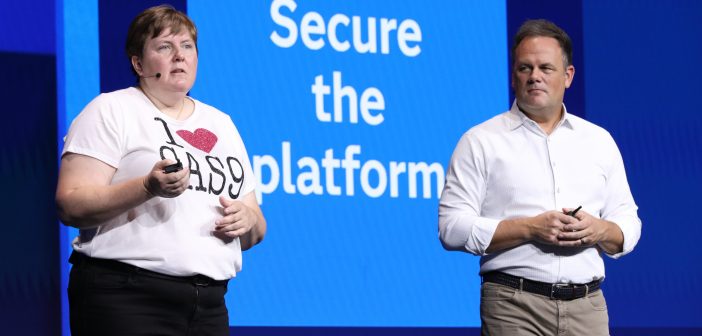
This year I will reprise my role as host of SAS Tech Talks, a pair of live webcasts that feature SAS R&D professionals and their latest technological wares. Click "play" on the viewer below to see what's happening right now. Below this widget, you can see the scheduled SAS Tech Talks lineup. (Note that scheduled times are in the Pacific USA timezone -- coming to you from San Francisco!)

Watch live streaming video from sasglobalforum at livestream.com


Monday, April 29 at 12:30 p.m. PT

SAS Web Editor
Mike Monaco, Director, Web SAS Technologies R&D

SAS Visual Analytics Explorer
Falko Schulz, Principal Software Developer, SAS BI Visualization R&D

SAS Mobile BI
Himesh Patel, Senior Director, SAS Data Visualization R&D

SAS program language advancements
Rick Langston, Senior Manager, SAS Platform R&D

DataFlux and Data Integration
Nancy Rausch, Senior Manager, SAS Data Management R&D

Tuesday, April 30 at 10:30 a.m. PT

SAS Marketing Automation
Brian Chick, Senior Manager, Customer Intelligence R&D

SAS App Works
Marty Tomasi, Director, SAS Middle Tier Platform R&D

ODS Graphics
Sanjay Matange, Director, SAS Scientific Visualization R&D

SAS Visual Statistics
Tonya Balan, Director, SAS Analytics Product Management

I've known most of these folks for a long time, and according to my quick math they possess well over 150 years of SAS experience (cumulatively, that is -- not each). And they all still work on cutting-edge projects that you'll want to learn more about!

Post a Comment

The important people you meet at SAS Global Forum

In the SAS User Groups LinkedIn group, some generous "old timers" offer tips to the potentially shy newcomers for connecting with other SAS professionals at SAS Global Forum. Perhaps these folks remember their own introverted natures, and they want to encourage attendees to get the most out of their conference experience.

One group participant, David Corliss, offered an inspiring (but not unusual!) account of how he met a fellow SAS user whose specific job has a big impact on David's family. I'm sharing the story here (with David's permission).

So, I just have to tell this story about meeting a first-timer at [SAS Global Forum] 2012. I was standing in line to buy a bagel at the hotel convenience store. The person in front of me saw my badge with the tags for speaker and session coordinator - he figured I had been around a little and wondered if I would look at his schedule and make any recommendations.

Naturally, I asked what his background was and what he wanted to accomplish. He said he was a statistician with the CDC in Altanta, working on infectious diseases in the third world. Due to cost restrictions, it is common in such places to receive only partial treatments for diseases requiring lengthy treatment, such as TB. His team calculated the effectiveness of these partial treatments and made recommendations to complete the treatment should it become available later on. He wanted my advice on papers and classes to take in so he could do more to save uncounted thousands of lives....

...like that of my own daughter, adopted from Russia at age 7 and exposed to TB as a small child. I owed this first-timer as inestimable debt of gratitude as the person who determined the remedial treatment needed to keep her as safe as possible from developing TB later on.

At [SAS Global Forum], whether you are a first timer or have been there for years and years, be sure to meet as many people as you can. You never know who you are going to meet.

It's true -- you never know. I'm inspired by SAS users at every conference I attend. I hope to see you there -- and to be inspired again!

Post a Comment

Getting Started with SAS - now available for viewing

Getting Started with SAS -- a free webinar for new SAS users -- is now available for on-demand viewing.

During this SAS Talks session, Stacey Syphus and I review the basics of what SAS is, what people use it for, and what you can expect to see as a new user. We talk about SAS programs: what they look like and what they can be used for. You won't learn how to write programs by watching this short webinar, but you'll at least know a SAS program when you see it.

I also demonstrate two of the most common SAS interfaces:

  • The SAS windowing environment (a.k.a. "display manager", and a.k.a "base SAS")
  • SAS Enterprise Guide

(It's been a long time since I showed off the SAS windowing environment. Within this blog I share lots of information about SAS Enterprise Guide, and don't devote much time to the more traditional interface for SAS. But the fact is each of these tools are in wide use around the world, and a "Getting Started" talk would be incomplete if we didn't include both.)

And as long-time SAS users know, learning to use SAS effectively is more than just learning a skill. It also involves getting "plugged in" to the exceptional SAS user community -- whether that's reading discussion forums, attending user group meetings, or working towards SAS certification.

If you are just getting started with SAS, or if you have colleagues who would appreciate a gentle introduction, give this webinar a try. It could be your first step into an exciting career!

Post a Comment

Using Windows PowerShell to download a file from a SAS Workspace session

In a previous article, I described how to use Windows PowerShell to connect to a remote SAS Workspace, run a SAS program, and retrieve the results. In that example, the only results I retrieved were the SAS log and SAS listing (text) output, if any.

When you run a SAS program on a remote session, sometimes the expected result is more substantial than just a text-based listing. What if your program creates Output Delivery System (ODS) files such as HTML or graphics? To retrieve those results, you need to download the files from the SAS session to your local machine, where your application can access them. Consider this program, implemented in a PowerShell script, which creates an image with PROC SGPLOT:

# change these to your own SAS-session-based
# file path and file name
# Note that $destImg can't be > 7 chars
$destPath = "/projects/results"
$destImg = "hist"

# program to run
# could be read from external file
$program =  
       "ods graphics / imagename='$destImg';
        ods listing gpath='$destPath' style=plateau;
        proc sgplot data=sashelp.cars;
        histogram msrp;
        density msrp;
        run;"

# run the program
$objSAS.LanguageService.Submit($program);

When the program runs, it creates a file named hist.png in the /projects/results folder within the SAS session.

Downloading a file with FileService

The SAS Workspace provides the FileService API, which allows you to transfer file-based content between your local application and the SAS session. As with most file-based operations in SAS, the FileService relies on the use of a SAS fileref, or the name that SAS uses to reference your file within a program. For a file download operation, these are the basic steps:

  • Obtain a SAS reference to the file (FileService AssignFileref method.
  • Tell SAS to open the remote file for reading (OpenBinaryStream method).
  • Read the contents of the file into a local array of bytes (Read method, repeating in 1K increments).
  • Write the contents into a local file (PowerShell objects).
  • When completed, close the local and remote file handles, and unassign the SAS file reference (Close method and DeassignFileref method).

Here's a PowerShell program snippet that implements these steps. (The complete example is available on GitHub.)

# local directory for downloaded file
$localPath = "c:\temp"

# now download the image file
$fileref = ""

# assign a Fileref so we can use FileService from IOM
$objFile = $objSAS.FileService.AssignFileref(
     "img", "DISK", "$destPath/$destImg.png", 
     "", [ref] $fileref);

$StreamOpenModeForReading = 1
$objStream = $objFile.OpenBinaryStream($StreamOpenModeForReading)

# define an array of bytes
[Byte[]] $bytes = 0x0

$endOfFile = $false
$byteCount = 0
$outStream = [System.IO.StreamWriter] "$localPath\$destImg.png"
do
{
  # read bytes from source file, 1K at a time
  $objStream.Read(1024, [ref]$bytes)
  
  # write bytes to destination file
  $outStream.Write($bytes)
  # if less than requested bytes, we're at EOF
  $endOfFile = $bytes.Length -lt 1024
  
  # add to byte count for tally
  $byteCount = $byteCount + $bytes.Length
  
} while (-not $endOfFile)

# close input and output files
$objStream.Close()
$outStream.Close()

# free the SAS fileref
$objSAS.FileService.DeassignFileref($objFile.FilerefName)

Write-Output "Downloaded $localPath\$destImg.png: SIZE = $byteCount bytes"

Here's an excerpt from the output when the script runs:
NOTE: PROCEDURE SGPLOT used (Total process time):
      real time           13.18 seconds
      cpu time            0.12 seconds
      
NOTE: Listing image output written to /projects/result/hist.png.
NOTE: There were 428 observations read from the data set SASHELP.CARS.

Downloaded c:\temp\hist.png: SIZE = 15092 bytes

Related links

Post a Comment

Upcoming SAS Talks: Getting started with SAS

Are you a new SAS user who isn't sure where to begin? Have no fear, because you're not alone. Here at SAS, we often receive questions from people who need help getting started with the software.

Getting Started with SAS is the topic of a SAS Talks session that I will co-host with SAS instructor Stacey Syphus on April 11, 2013 at 1pm ET. Tune in if you can, but don't worry if you can't -- the session will be recorded and available later as part of the SAS Talks series.

The goals of this session are to familiarize you with the content of typical SAS programs, teach you to read SAS log output, and show you how to run and modify programs. You won't become a SAS programming expert by attending this session, but it should provide a good foundation for further study. If you want to find out more, dozens of SAS programming books and training courses are available that cover every aspect of the craft. (And yes, SAS programmers often do regard themselves as craftspeople, of a sort.)

In this session, Stacey and I will cover:

  • a high-level review of SAS, its foundational technologies (including Base SAS) and how it works.
  • the different methods for working with SAS, including the SAS windowing environment and SAS Enterprise Guide.
  • how to determine which SAS approach is best for you.

Also, you'll learn where you can find resources at SAS that are available specifically for SAS beginners (including my SAS for Dummies book, now available in its second edition).

I hope that you'll join Stacey and me for the session. Don't wait to begin getting the most out of SAS.

Related links:

Getting started with SAS Enterprise Guide
SAS Enterprise Guide for the Programmer: What's in It for Me?

Post a Comment

Applied data science in college basketball

Revenge of the Nerds was so 1980s. Now it's a new world order: math geeks and athletes are working together.

I'm not talking just about what happens when data nerds observe, analyze, and predict sports outcomes -- as they do in March Madness with their "bracketology". That's compelling, but your ability to predict an outcome is nothing when compared with the ability to influence the outcome.

That's what my friend Drew Cannon is doing for the Butler Bulldogs, and even Sports Illustrated has noticed the impact.

I first mentioned Drew in a blog 3 years ago, when his work as a summer intern for a basketball scouting publication earned him recognition in a New York Times article.

Today, he's on the bench as an assistant coach, diligently recording every aspect of the game that can be counted and measured. He then compiles the data, analyzes it, and uses it to inform the head coach via a system of "rules": for example, which players work well together in which situations. When the rules are followed, there's a better outcome. From the Sports Illustrated article:

"I love it when Drew [reminds] a guy who coached in two national championship games [of these rules]," Butler assistant Michael Lewis said. "He'll say, 'When we played by the rules, we were plus 5. When we didn't we were minus 3.' I love it, for a 22-year old kid to have the guts to say it."

Guts? Yes, I believe it. But when you've got the data and a solid analysis, it's a lot easier to muster your nerve.

Post a Comment

Custom tasks for SAS Enterprise Guide: Q&A

Last week I delivered a SAS Talks session: Introduction to Custom Tasks for SAS Enterprise Guide (click to watch it). I promised that I would share a collection of resources where you can learn more information.

First, here is a round-up of the custom tasks that I mentioned, with links for more information and downloading. These are tasks that you can use today in SAS Enterprise Guide.

Copy Files to/from SAS Project Reviewer
SAS Macro Variable Viewer SAS System Options Viewer
Export Data to Excel 2010 (xlsx) Data Set->DATA Step
Run System Command PROCs on Facebook Friends
SAS Catalog Explorer Sudoku Solver with SAS
Top N Report Calculate Running Totals
Compress SAS Data Create KPI Report
Report with Conditional Highlighting Run ODS Graphics Designer

Now, a few selections from the Q&A section of the talk.

Does my SAS license allow me to run custom tasks?
Yes, there are no license restrictions for running custom tasks (as long as you have SAS Enterprise Guide and/or the SAS Add-In for Microsoft Office). However, the work that the task performs might leverage a SAS capability that you don't have. For example, if you found a custom task that created a forecast using PROC ESM, you would need SAS/ETS in order to benefit from that task.

Note: the SAS OnDemand for Professionals and SAS OnDemand for Academics offerings use special versions of SAS Enterprise Guide in a SAS learning environment. Custom tasks are not usable in that environment.

Do I have to register a custom task in SAS Management Console before I can use it (or give it to my team to use)?
You need to register a custom task in SAS Management Console only if you want to limit who has access to it. By default, any SAS Enterprise Guide user can install and run a custom task simply by "installing" the custom task DLL(s) to one of several designated local folders.

I'm running an older version of SAS Enterprise Guide. Can I still use the custom tasks that you described during your talk?
The answer is: it depends. Some of the tasks I showed (such as the Top N Report and the Soduko Solver) are designed to work with SAS Enterprise Guide 4.1, and they work in all later versions of SAS Enterprise Guide as well. Other tasks (such as Project Reviewer) were built for SAS Enterprise Guide 4.3, and still work with version 5.1. See the documentation that accompanies the task for which versions of the software are supported.

Can you describe the difference between SAS stored processes and custom tasks?
A SAS stored process is a SAS program that is stored in a central location, registered in the SAS Metadata environment. You can run a stored process in SAS Enterprise Guide, SAS Add-In for Microsoft Office, in web apps like SAS Web Report Studio and even SAS Visual Analytics. But as a stored process author, you have limited control over the prompts and user interface experience. A custom task runs only in SAS Enterprise Guide and the SAS Add-In for Microsoft Office. Custom tasks can run SAS programs (like a stored process) but they can be used for many other operations that aren't necessarily captured in a SAS program. And, as a custom task author, you have complete control over the user interface.

For a summary of the differences between custom tasks, stored processes, and other methods of packaging custom processes, see Chapter 1: Why Custom Tasks. It's the free chapter from Custom Tasks for SAS Enterprise Guide Using Microsoft .NET.

What's the best way to get started with building my own custom task?
It's definitely easier to use a custom task than it is to build one. But building tasks can be a fun and rewarding experience too. To get started, my shameless advice is to begin with my book: Custom Tasks for SAS Enterprise Guide Using Microsoft .NET. The information in the book will save you loads of time in research, and should provide you with just the right amount of information to get started.

Of course, you can also visit go.sas.com/customtasksapi for the "raw" information about the custom task APIs and lots of example projects.

If you missed the talk and you still want to learn about how custom tasks can help you to do more with SAS, go watch the recording right now!

Post a Comment

Using Windows PowerShell to connect to a SAS Workspace server

This post is another in my series about creating apps with SAS Integration Technologies, a topic that I'm preparing for SAS Global Forum 2013.

In this article, I'll describe how to use Windows PowerShell to connect to a remote SAS Workspace, run a SAS program, and retrieve the results. This can be a useful method to implement a batch-style SAS job that you initiate from a client machine -- a common requirement in many SAS shops. The complete code example is on GitHub as SasWorkspaceExample.ps1.

Like my previous example with the SAS Metadata Server, this example begins with using SAS Object Manager. Use SAS Object Manager to create a ServerDef object that you use to connect to a SAS Workspace. This time we'll use the Workspace server port (by default, 8591) and the ClassIdentifier value for a SAS Workspace object. Remember, I used PROC IOMOPERATE to remind me which value that is, since I've never been any good at memorizing a 32-character hexadecimal value.

$objFactory = New-Object -ComObject SASObjectManager.ObjectFactoryMulti2
$objServerDef = New-Object -ComObject SASObjectManager.ServerDef 
$objServerDef.MachineDNSName = "server.mycompany.com" # SAS Workspace node
$objServerDef.Port           = 8591  # workspace server port
$objServerDef.Protocol       = 2     # 2 = IOM protocol
# Class Identifier for SAS Workspace
$objServerDef.ClassIdentifier = "440196d4-90f0-11d0-9f41-00a024bb830c"

Connecting to a SAS Workspace

With an instance of an ObjectFactory class and the ServerDef class, you can now establish a connection to the server:

# create and connect to the SAS session 
$objSAS = $objFactory.CreateObjectByServer(
                "SASApp",      # server name
                $true, 
                $objServerDef, # used server definition for Workspace
                "sasdemo",     # user ID
                "Password1"    # password
                )

When this statement completes successfully the $objSAS variable contains a connection to the SAS Workspace. With this connection, you can run SAS programs, read SAS data, and transfer files between the SAS Workspace and your application. (I'll cover how to transfer files in a future post.)

Running a SAS program with LanguageService

The SAS Workspace provides an API called LanguageService, which allows you to run SAS programs and retrieve the text-based results, including the SAS log and the SAS listing output. Here is a simple example using the $objSAS variable from the previous example:

$program = "ods listing; proc means data=sashelp.cars; run;"

# run the program
$objSAS.LanguageService.Submit($program);

These statements will run the program, but they won't retrieve your results. To see the contents of the SAS log, use the FlushLog method as in this example:

# flush the log - could redirect to external file
Write-Output "LOG:"
$log = ""
do
{
  $log = $objSAS.LanguageService.FlushLog(1000)
  Write-Output $log
} while ($log.Length -gt 0)

The FlushLog method requires that you specify the number of bytes that you want to retrieve in a single call. In the above example, we used 1000. But what if your SAS log is greater than 1000 characters? That's the reason for the do..while loop. In this example, the PowerShell statements will continue to retrieve and emit the SAS log content until the FlushLog method no longer returns any content (that is, while the length of the $log variable is greater than 0).

You can retrieve the SAS listing output in a similar way by using the FlushList method:

# flush the output - could redirect to external file
Write-Output "Output:"
$list = ""
do
{
 $list = $objSAS.LanguageService.FlushList(1000)
 Write-Output $list
} while ($list.Length -gt 0)

This picture shows the Windows PowerShell ISE (scripting environment) with the script output:

the Windows PowerShell ISE

Closing the SAS Session

It's important to manage the lifetime of the SAS session in a responsible way. If you create a SAS Workspace connection and use it within your application, you should call the Close method on the SAS.Workspace object when your work is complete. This is especially true if your application is designed to stay running for a long time, even when the SAS session is not in use.

To close the SAS Workspace session, use the Close() method:

# end the SAS session
$objSAS.Close()

Related links

Post a Comment

Using SAS to count the number of LinkedIn "shares" for your article

Last year I shared this popular tip for counting how many times a web link has been shared on Twitter or Facebook. I use this technique daily to report on the social media "popularity" of our blog articles at SAS.

I wanted to add LinkedIn into the mix. Like Twitter and Facebook, LinkedIn also has a REST-based API that can be used within a SAS program. For example, if I want to know how many times my recent post "It's raining analytics" has been shared on LinkedIn, I can use PROC HTTP to hit this URL:

http://www.linkedin.com/countserv/count/share?url=http://blogs.sas.com/content/sasdummy/2013/01/15/its-raining-analytics/

Here is the JSON-formatted response (as of today):

IN.Tags.Share.handleCount ( { "count":89, "fCnt":"89", "fCntPlusOne":"90", "url":"http:\/\/blogs.sas.com\/content\/sasdummy\/2013\/01\/15\/its-raining-analytics\/" } );

Wow! That blog post has done pretty well on LinkedIn (with "count"=89) - it's my most-shared post this year.

Here's a SAS program that checks the LinkedIn shares for me:

%let url=http://blogs.sas.com/content/sasdummy/2013/01/15/its-raining-analytics/;

/* temp holding area for LinkedIn response */
filename li temp;

/* call the LinkedIn API */
proc http
  url="http://www.linkedin.com/countserv/count/share?url=&url."
  method='GET'
  /* proxyhost= if behind corp firewall */
  out=li;
run;

/* use RegEx to gather the "count":n  value */
data liresult (keep=url lishares);
  length line $ 1000 lishares 8;
  length url $ 300;
  url = "&url.";
  infile li;
  input line;

  if _n_ = 1 then
    do;
      retain li_regex;
      li_regex = prxparse("/\""count\""\:([0-9]*)/");
    end;

  position = prxmatch(li_regex,line);

  if (position ^= 0) then
    do;
      call prxposn(li_regex, 1, start, length);
      lishares = substr(line,start,length);
    end;
run;

/* clear our temp response file */
filename li clear;

Result:

That's a lot of code to retrieve the answer for just one link. Thanks to the power of the SAS macro language, I can scale this to retrieve the values for an entire collection of links. With those results in hand, I can run other stats:

Of my 63 posts in the past 12 months, my links have been shared to LinkedIn an average of 4.58 times, with a total of 289 shares overall.

I'm not so naive that I consider these to be impressive numbers, but I've only just begun the habit of sharing my posts on LinkedIn. With this process as part of my daily blog reporting, I can now measure how my "LinkedIn engagement" improves as I share more content. Collect data, count, measure, report -- that's what it's all about, right?

Note: Many web articles, such as blog posts, can have multiple URLs. For example, the WordPress platform offers "short-link" GUID URLs as well as the longer, more descriptive URLs. While all of these different URLs might lead to the same page, LinkedIn counts only the URL you share. So if you are in the habit of publicizing different URLs for convenience or other tracking purposes, you might need to check each permutation of a page URL with this program to get the complete "LinkedIn shares" picture.

Reference example

Complete macro version of my LinkedIn shares program (lishares_example.sas)

Post a Comment

Upcoming SAS Talks: Custom tasks for SAS Enterprise Guide

If you're using SAS Enterprise Guide and you're not using custom tasks, you're missing out! Custom tasks are new features you can plug in – features that weren't originally packaged with the software. (And contrary to the Pulp-O-Mizer poster that I created, they do not come FROM OUTER SPACE. Usually.)

Did you know there are dozens of tasks available for you to download and install? These tasks provide all sorts of capabilities, including new analysis and reports, productivity tools for programmers and utilities that help you to manage your projects. Many of these tasks also work with the SAS Add-In for Microsoft Office.

This is the topic of my next SAS Talks session, coming up on March 14, 2013 at 1pm EST. Tune in if you can, but don't worry if you can't -- the session will be recorded and available later as part of the SAS Talks series.

In this session, you'll learn what custom tasks are available and how you can download and install them. You'll also see a few of the tasks in action as part of a live demo. Specific topics include:

  • What are custom tasks, and how are they different from (and similar to) built-in tasks?
  • How to download, install and control access to custom tasks.
  • A quick look at creating your own custom tasks.

Of course, you can expect me to mention my new book during the session. But you don't need to own the book in order to benefit from the information or from the many custom tasks that you can already use today. I hope you'll join me for the session.

Post a Comment