Author

SAS Taiwan
RSS

SAS 學習資源 : https://blogs.sas.com/content/sastaiwan/

Analytics
SAS Taiwan 0
資料處理時若遇到編碼/亂碼問題應如何解決?

一、可能有的狀況 錯誤訊息: [Error] Failed to transcode data from utf-16le to wlatin1 encoding because it contained characters which are not supported by your SAS session encoding. Please review your encoding= and locale= SAS system options to ensure that they can accommodate the data that you want to process. 資料匯入後都是亂碼 二、造成原因 資料與電腦環境的編碼不同,便可能造成使用者資料匯入後無法使用
SAS Taiwan 0
EG 與 EM 介面如何修改為英文

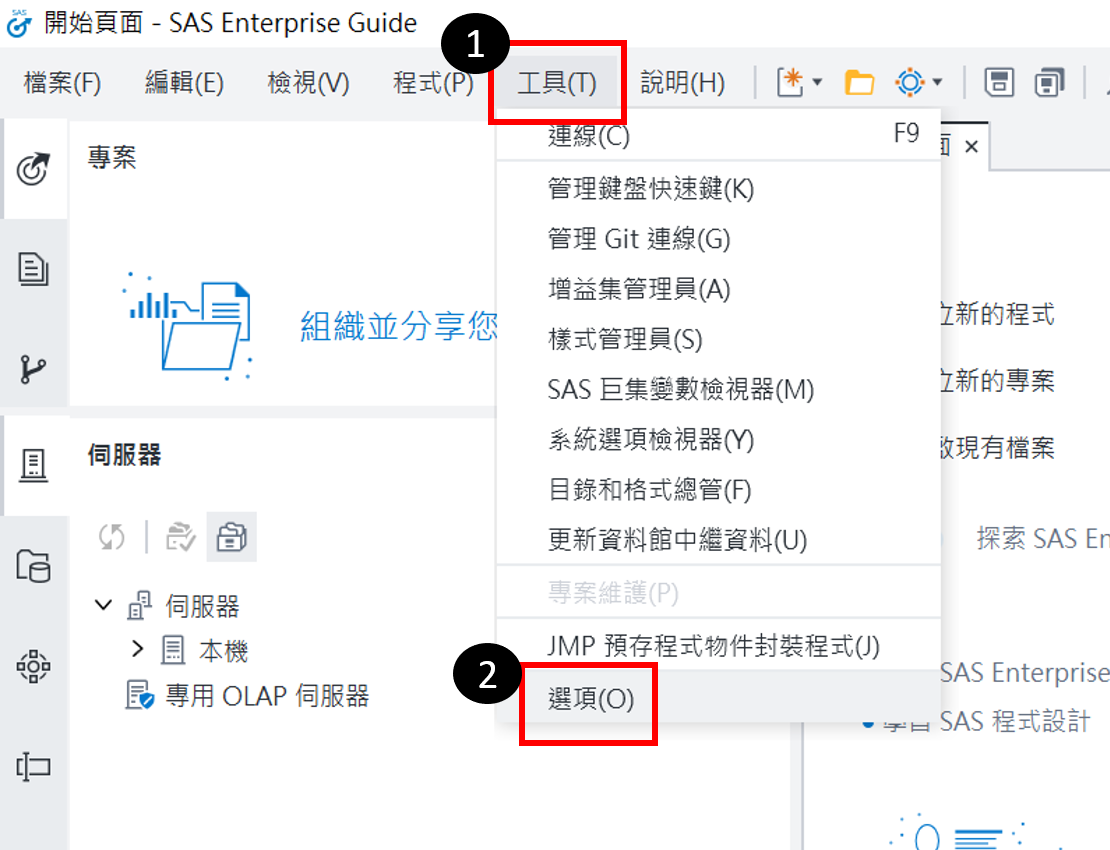
Q1. EG操作介面語言怎麼改成英文? (1). 開啟EG點選上方的「工具」>「選項」 (2). 在「啟動」頁面的「SAS Enterprise Guide 語言設定」選擇顯示語言後,按「確定」 (3).關閉 EG 後再重啟,即為修改後語言 進階閱讀: EG 輸出的報表如何轉成英文?   Q2. EM操作介面語言怎麼改成英文? (1). 點選Windows下的「開始 / SAS / SAS Deployment Manager 9.4」 (2). 「選擇語言」→ 選擇繁體中文 → 確定 (3). 「SAS部屬管理程式工作」→ 選擇Locale Setup Manager → 下一步 (4). 「SAS部屬管理程式工作」→ 語言選英文(美國)[en_US], 並選取SAS Enterprise Miner Workstation Configuration → 下一步 (5).

Analytics
SAS Taiwan 0
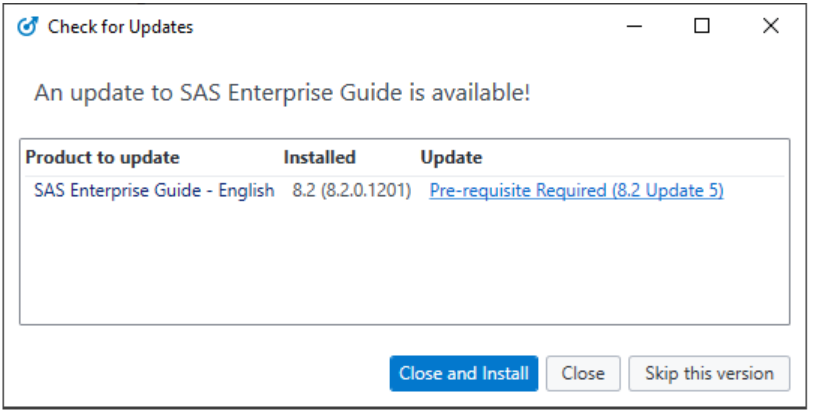
SAS EG 8 更新時遇到錯誤

若您在 EG 8.2 進行更新 遇到更新錯誤: "An error occurred . . . Unable to download the update."   1.請先關閉您的 EG 開啟您的 EG 安裝路徑,一般可以在以下路徑找到: C:Program Files (x86)SASHomex86SASEnterpriseGuide8 C:Program FilesSASHomeSASEnterpriseGuide8  2. 請將 既有的 AutoUpdate.exe 檔案 重新命名為 AutoUpdate_OLD.exe 3. 於連結: https://tshf.sas.com/techsup/download/hotfix/HF2/BIRD/autoupdate/66676/AutoUpdate.exe 下載新的檔案 AutoUpdate.exe 後,移至 EG 安裝路徑資料夾中 4. 當您重啟 EG 再次進行更新時,即可成功更新   請參考: https://support.sas.com/kb/66/676.html  

1 11 12 13 14 15 95