One of the problems that trips up experienced SAS users when they begin to use SAS Enterprise Guide is a result of simple geography.
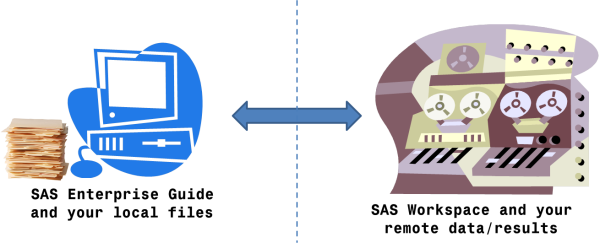
The SAS Enterprise Guide application runs here, on your desktop. The SAS Workspace session (which accesses data and cranks through your analysis) runs over there, on a remote machine. If you're accustomed to "PC SAS" running all on your local box, you might be forced to rethink a few of your processes. For example, do you have Excel files on your PC to import using PROC IMPORT? Does your SAS program create output that you have to save on your PC? How will you get these files to where they need to be?
There are some strategies that help, including mapped drives, UNC paths, and network shares via a mechanism like Samba. These mechanisms allow your local SAS Enterprise Guide and your remote SAS to "see" a shared location on the network. Also, SAS Enterprise Guide has a few focused tasks that can "move" files for you under the guise of "import" and "export" steps.
But there isn't a general method to copy any file you want from your PC to the SAS Workspace, or from the SAS Workspace to your PC. Until now.
I give you: the Copy Files task for SAS Enterprise Guide.
Note: This article was originally published in 2012. It's been updated periodically with new information. Most recently, I added a link to a video tutorial about the Copy Files task.
What "Copy Files" does
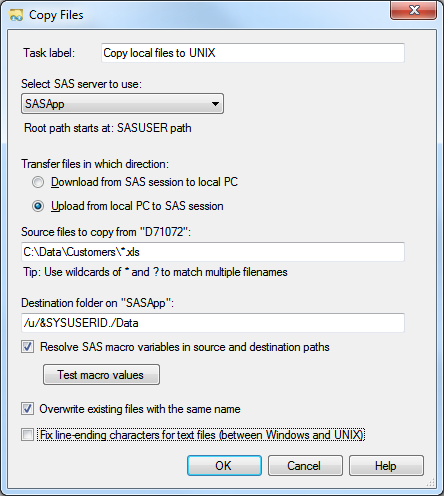
The Copy Files task allows you to capture file transfer steps within your SAS Enterprise Guide process flow. You can upload files from your local PC to the remote machine where your SAS Workspace is running. And you can download files from your remote SAS Workspace to a folder on your local PC. It is similar in concept to an FTP process, except that this transfer operation uses your already-existing connection to a SAS Workspace and does not require a separate application.
Some readers might be familiar with SAS/CONNECT Data Transfer Services (PROC UPLOAD and PROC DOWNLOAD), which allows you to transfer files between two SAS sessions. Again, this is similar in concept, but since there is only one SAS session in play here, we need to use a different mechanism.
How to copy files in bulk
The Copy Files task supports two features that allow you to copy multiple files with a single step. First, you can use wildcard characters to match on multiple file names. An asterisk (*) matches all characters, in any number, before the next non-wildcard character. A question mark (?) matches any single character that occupies that position in the file name.
Second, you can use SAS macro variables and expressions to specify any part of the source file names or destination folder. Use a SAS program to determine the files you need to copy earlier in the process, assign that value to a macro variable, and then have the task "dynamically" select the correct files when it's time to copy them.
Support for Task Templates
The Copy Files task also supports a standard SAS Enterprise Guide feature: Task Templates. You can create an instance of the task that is useful in one process, then save those task settings to your personalized set of Task Templates that you can use in another process or even in another project. To save your settings as a template, right-click on the Copy Files task within your process flow and select Create Task Template. To use the new template, select it as a menu item from Tasks->Task Templates.
To see the Copy Files task in action, watch this 11-minute portion of my SAS Enterprise Guide tutorial.
Limitations to note
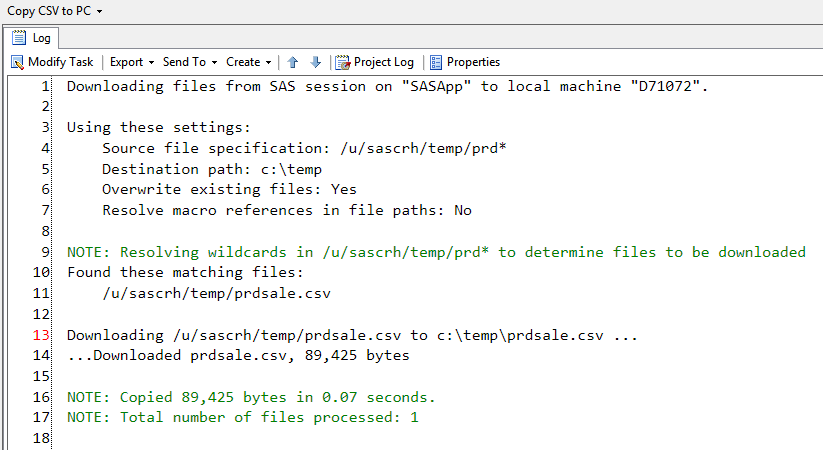
This task does not generate a SAS program that you can reuse in a batch SAS process or SAS stored process. The task works by using SAS Workspace APIs to transfer data across your network connection, so all of the work happens "behind the scenes". However, the task does create a detailed log output that shows what files were copied, how many bytes were transferred, how long it took, and whether there were any errors.
How to access the Copy Files task
You'll find the Copy Files task in the Data category of the SAS Tasks list. Here's the view from SAS Enterprise Guide v8.2:
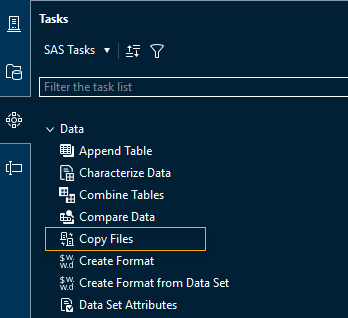
This task has been included in SAS Enterprise Guide since the v7.13 release (late 2017). Are you using an older version? You really should consider upgrading! But, with a little work, you can add the task to older versions.
You can download the Copy Files task from this link (Zip file). The download package includes multiple versions that depend on your version of SAS Enterprise Guide: v4.3, v5.1, v6.1, v7.1 (before v7.13), and one for v4.1 (with a reduced feature set). There is also a documentation file (PDF) that provides instruction for how to install and use the task. You might need to perform this extra step to "unblock" the downloaded DLL to avoid an error ("HRESULT: 0x80131515") when you try to add the task to your installation.
WANT MORE GREAT INSIGHTS MONTHLY? | SUBSCRIBE TO THE SAS LEARNING REPORT
181 Comments
Early Christmas, thank you for this great tool Chris
Very nice! I'd love to see this enhanced with point-and-click dialog boxes to select the files (rather than manually typing them into the field), if not for the "remote server" side then at least for the "local" PC side.
This is a great enhancement, solving a big "usability" problem. Thanks!
"and one for v4.1 (with a reduced feature set).",what does it mean?Can the version for v4.1 copy multiple files?
Thanks Chris!
Yes, it can - it supports wildcard notation. But the user interface is a bit more rudimentary, and it doesn't support Task Templates (available in EG 4.2 and later).
For "Upload from local PC to SAS session", it's OK.But it does not support wildcard notation when download from SAS session to local PC. Is it ok with yours? Or it is just a reduced feature set.
Jacob,
Are you referring to the 4.1 version? It *should* support wildcard notation for source files, whether coming from your local PC or the remote SAS file system. If you're not seeing that, please post back with the content of the log output and I'll try to see what's going on.
Chris,
Yes,I am referring to the 4.1 version.
There existed txt,csv,sas7bdat files under test folder.
I tryed "*.txt" and "*.csv",none successed.My colleagues meet the same issues.
I think it might be the problem of the server where SAS EG4.1.0.0 installed,but not sure.
Do you have any suggestions?
By the way,I'm from Shanghai,and my English is not good,and expression may be not clear or syntax error.If you think my expression is not clear,please let me know.
Thanks very much.
Jacob,
I understand the problem...but I cannot tell from the error what the cause is. It's possible that the path you are specifying is different from the SAS file system. That is, the path might need to be expressed differently.
To test, can you run a SAS program from EG with this statement?
If that works, then SAS sees the path as valid and accessible. If not, then it's possible you need to supply a more complete path in order for SAS to resolve it.
Chris,
The path is OK,I use ' libname test "/sascnapp/data/dm/psacn147/test/"; '
or ' libname Temp "/sascnapp/data/dm/psacn147/MIS361/201212";'
or ' libname test "/sascnapp/data/dm/psacn147/&StaMth."; '(such as %let &StaMth=201301),
ect.,everyday,and SET datasets into the lib.It does work.
Is it that it did not resolve numbers??Oh,I'll test it tomorrow.
Thanks.
Okay, remember these limitations:
- the wildcard notation is only on the file name, not the folder names. The task won't resolve wildcards in folder names.
- the Copy Files task doesn't search into subfolders and process the directories "recursively". It operates only on the one named folder path.
Chris,
This is not the problem of path.It may be the server.Anyway,I find another way to DOWNLOAD files.
Thanks very much for your advice.
Chris,
Make a little change,
/sascnapp/data/dm/psacn147/test/MIS*.sas7bdat
then it works! How Strange!
Excellent! Glad to hear that it's working for you.
This is an elegant tool!
Thank You Chris.
Pingback: My favorite SAS tips and tools from 2012 - The SAS Dummy
Pingback: Controlling access to custom tasks in SAS Enterprise Guide - The SAS Dummy
Chris:
I'm having the same trouble as a few folks here but lack their .net expertise. To sum up :
(1) I get the following error when trying to load custom tasks : "Unable to load file...Error: Could not load file or assembly 'SAS.Tasks.ProjectReviewer' or one of its dependencies. Operation is not supported.
(2) Upon further investigation I believe the issue is addressed in this post by Microsoft :
http://blogs.msdn.com/b/shawnfa/archive/2009/06/08/more-implicit-uses-of-cas-policy-loadfromremotesources.aspx
(3) Essentially I need to bypass the issue is by setting :
loadFromRemoteSources enabled="true"
The problem is I don't know where to do that. I tried modifying the SAS config file for the executable but then SAS would not load. It could be that I set it in the wrong place.
Do you think you can provide some insight?
Roberto, check the "Special steps for running task examples" section on this page with some of my examples. Ensure that the DLL file is "Unblocked" on your system, per these instructions. If that doesn't solve the issue, post back and I'll look into it some more.
Thanks!!! That worked!! Have to buy your book now :D!
This is EXCELLENT! We just switched to SAS on a server from PC. This was a major problem until I stumbled upon The Dummy Blog and found this handy add-in. Thanks for sharing it.
Chris,
Thanks for this! I found it yesterday and am using it in conjunction with a web service. Fantastic!
Tom, great to hear it! "Copy files task" + "web service" isn't a mashup that I imagined, but I find that SAS users are often more creative than I am at solving problems.
Hi Chris,
We installed the DLL in the specific users directory originally (C:\Documents and Settings\\Application Data\SAS\EnterpriseGuide\5.1), then changed our minds. When we removed it from the users directory and placed it in the app directory (C:\Program Files\SASHome\SASEnterpriseGuide\5.1\Custom), the DLL doesn't function. Is there a registry change that has to be made or is there a setting within EG itself that can be altered to override the original location of the DLL?
Overall, fabulous task!
-Tom
Tom, by chance, did you re-download the file from support.sas.com when you "moved" it?
Check the "Special steps for running task examples" section on this page with some of my examples. Ensure that the DLL file is "Unblocked" on your system, per these instructions. If that doesn't solve the issue, post back and I'll look into it some more.
Pingback: Custom tasks for SAS Enterprise Guide: Q&A - The SAS Dummy
Hi Chris,
I have problems installing this add-on on my EG 4.3. It says that ''Unable to load file SASFileTransferTasks43.dll. Error: Add-In is invalid file type."
The dll-file is located the same place as two of your other very nice add-ins, which works perfectly fine. It doesn't make any difference that i unblock the files. Hope you have some suggestions because I really need the Add-In feature :-)
Rune, the file name *should* be SAS.Tasks.CopyFiles43.dll. Maybe you transcribed the message incorrectly in the comment, but just want to make sure.
You can capture a few more diagnostics by turning on logging using the instructions in this SAS Note. If you do that, you'll find a text file with internal logging activity in the %appdata%\sas\enterpriseguide\4.3\logs folder. If you capture the log while you see the "add-in" error message, there should be some additional entries in the log around SAS.Tasks.CopyFiles43.dll and the SasFileTransferTask. If you post those back (or e-mail to chris.hemedinger [at] sas.com) I'll take a look.
Hi Chris,
You are ofcause right that I transcripted the message incorrectly, the file name is "SAS.Tasks.CopyFiles43.dll".
I tried turning on logging and got the following result:
[Main] INFO SAS.Shared.AddIns.Management.AddInRegistry [(null)] - Loading custom task assembly: \\De2900\STRAT\Diverse\SAS\EG\SAS.MacroViewer\SAS.MacroViewer.dll
[Main] INFO SAS.Shared.AddIns.Management.AddInRegistry [(null)] - Successfully loaded custom task assembly: SAS.MacroViewer, Version=4.3.0.0, Culture=neutral, PublicKeyToken=null
[Main] WARN SAS.Shared.AddIns.Management.AddInRegistry [(null)] - Type OptionsTask failed inspection as a custom task: Exception has been thrown by the target of an invocation.
[Main] WARN SAS.Shared.AddIns.Management.AddInRegistry [(null)] - Type MacroTask failed inspection as a custom task: Exception has been thrown by the target of an invocation.
[Main] ERROR SAS.Shared.AddIns.Management.ManagerForm [(null)] - GetAddInRegistryInfo() -
System.Exception: Add-In is an invalid file type.
at SAS.Shared.AddIns.Management.AddInRegistry.LoadElementFromAssembly(String targetAssembly)
at SAS.Shared.AddIns.Management.ManagerForm.GetAddInRegistryInfo(String FilePath)
Any suggestions? I have the same problem with the Macro variable viewer, but not with the SAS Catalog Explorer.
Rune, it looks like you are trying the load the DLL from a UNC path (\\de2900). By default, The .NET Framework disables loading assemblies (DLLs) from network paths, through a feature called "Code Access Security". You'll need to put the DLL on a local drive (not network drive) in order for EG to pick it up. Alternatively, you can enable the Code Access Security by adding your network location as a Full Trust location. To do this, you launch ".NET Framework 2.0 Configuration" (tool on your Windows machine), then select Configure Code Access Security, then either Increase Assembly Trust (to add just the one assembly) or Adjust Zone Security (to make your Local Intranet have Full Trust). Search for "Microsoft .NET code access security" for more background and instructions for the tool.
Hi Chris,
We are using SAS 9.2 with EG 4.2 version do you also have a copy utility for that.4.1 and 4.3 is not working.
Also We are planning to migrate on EG5.1 Citirx but in PoC I could not locate SAS EG on my local machine.Could you please help?
Prashant,
Sorry, I don't have a 4.2 version of the Copy Files utility at this time. If you're planning to move to 5.1 anyway, it sounds like your need for a 4.2 version is short-lived (I hope).
Regarding migrating to Citrix: if you run via Citrix or Terminal Server, your EG session is on a remote Windows environment that you log into. It won't be on your local machine. Thus, a tool like Copy Files (if that's what you're trying to use) has to be installed on the Citrix environment as well. You'll need to ask your IT support staff to help make that happen.
Pingback: An FTP-style task in SAS Enterprise Guide: user-driven fixes - The SAS Dummy
Thank you! This is great! I look forward to integrating all of those repetitive file transfers right into my Process Flow!
Hi Chris,
First of all thank you for this lovely little peice of work.
I am getting following error when I try to copy files using this copy task:
"ERROR: Unable to locate files within the path /saspext1/z2/sasdata/kokanea/*.xls."
I did check if SAS path is a valid path. If you or anyone can shed some light on what is this error, it would be great.
Thanks in advance!
Amey,
Do you have the most recent version of the task? This type of path would work only after getting the version I posted last week. Any easy way to tell if you have the latest: the updated version also has a Save button on the bottom, whereas the earlier version did not (had only a Run button, plus Cancel and Help).
Thanks for the prompt reply Chris.
I used the new version after I saw your comment but still no success. May its because SAS EG is connected a data library onto a unix server.
I am also having problems running the EG Scheduler and sas support said it will give you a problem if you are working in client-server environment.
If you can direct me to some material that I can refer to for this problems, I would appreciate it.
Thanks for your help !
Amey, another thing to check is that you can actually reach the path you supplied via a SAS program on this workspace. The path you supplied might not be a good reference in terms of the SAS Workspace environment.
Sample test to run from an EG program node:
%let folder=/saspext1/z2/sasdata/kokanea; /* Check for presence of a KNOWN xls file */ data _null_; if fileexist("&folder./myfile.xls") then call symputx('file_found','1'); else call symputx('file_found','0'); run; %put FILE_Found = &file_found.;Hi. I was able to use this program sucessfully to move .xls files from a network folder to a Linux server. However, I was not able to move .xlsX files. The log said that the files were moved (it showed the bytes moved) but on the linux box the files showed up as 0 bytes. Is it possible to use this for .xlsX files ? Thanks.
Brian,
Yes, *.xlsx files should work, and they always have worked fine in my tests -- even when transferring them to Linux. If you continue to have troubles, respond back and I'll help you to diagnose it.
Hi Chris,
I'm also having trouble registering the Add-in. I'm running SAS EG v5.1 thin client on a 64 bit workstation and Linux 64 bit server. I'm getting a message that the Add-in Manager is "Unable to load file C:\Program Files\SASHome\SASEnterpriseGuide\5.1\Custom\SAS.Tasks.CopyFiles51.dll. Error: Could not load file or assembly 'SAS.Tasks.CopyFiles51' or one of its dependencies. Operation is not supported. (Exception from HRESULT: 0x80131515)"
I read the previous posts and "Unblocked" the file using Windows Explorer. What am I doing wrong? Thanks! -Todd
Todd,
It might be that you don't have the "unblock" permissions necessary -- your error message is definitely consistent with the "blocked DLL" situation. See my update in this post for "special steps".
Hi Chris,
Thanks for your help. Our Help desk managed to unblock the file for me - I didn't have the necessary permissions. I uploaded a test *.txt file and now have problems with my infile statement "ERROR: Physical file does not exist, /home/tgerber/HCC/ff_IFE_MBR_ELIG_EXT.txt." I'm googling this error now. Does anyone know if it is possible to read txt files without going through the IMPORT utility on SAS Enterprise Guide? I need to read multiple files that have header and footer records, and I don't see options for this in the GUI. -Todd
Todd, since your file name has mixed-case naming, make sure that the file exists on your UNIX path with that name exactly. UNIX is case-sensitive about file names. You're correct that if you want a process that reads multiple files as a collection, you will need to use a SAS program (and not the Import Data task that EG provides -- although that might help you get started).
Hi Chris-
This is excellent...I was trolling around looking for info on how to build custom tasks and stumbled into this task which we've been trying to build work arounds for for a few months. I appreciate you posting!
Brendan, I'm glad you like it. For the latest information about building your own tasks, start at this support page.
Hi Chris, great utility!
I was successful getting this to work on my local PC to copy files from a mapped drive to the SAS server (when I use the Mapped drive notation, i.e. u:\*.xlsx). However, our setup for users runs from TSX servers. I have access to log onto the TSX servers and can see my mapped drives from there so would assume this would work. However, I get the following when running the task from a TSX server, and seems that it is done processing...?
Uploading files from machine "TSX1" to SAS session on "SASApp".
Using these settings:
Source file specification: u:\*.xlsx
Destination path: /svops/sasdata/rtm/oit/oit_share/oit_dev/DATA
Overwrite existing files: Yes
Resolve macro references in file paths: No
Convert line endings for text files: No
NOTE: Resolving wildcards in u:\*.xlsx to determine files to be uploaded
I'm not familiar with TSX servers but I'm going to guess that this is a way to publish an app "virtually" so that you can use it without installing the app on your local PC. Is that correct? Or is it like a terminal server/Citrix setup? Here are some things to check:
If you downloaded this task before 16May2013, be sure that you have the most recent version. I posted a new version with some related fixes during May.
Make sure that EG can see the mapped drive. The mapped drive should show as a location when you select File->Import Data -- you should be able to locate one of your XLSX file on the U:\ path.
The file search does not recurse through subfolders, so if you have *.xlsx files in the root of U:, your specification should find them. Otherwise you'll have to specify a subfolder path for each specific location.
If EG can see the U: drive, try "U:\*.xls?" to pick up both XLS and XLSX files.
yes, Terminal Servers. Got it to work, thanks.
Hi Chris,
this works great, just have a little problem. When i run the process flow (all queries, program code within process flow) the taks simple doesn't work. The log is following:
Downloading files from SAS session on "SASApp" to local machine "A22011CA".
Using these settings:
Source file specification: D:\Workspace\tihomirz\REPORT\VELIKE IZLOZENOSTI\Velike_izlozenosti_&SYSDATE..xml
Destination path: C:\Users\tihomirz\Documents\SCHEDULE PROJECTS\VIB\Excel files
Overwrite existing files: Yes
Resolve macro references in file paths: Yes
Convert line endings for text files: No
NOTE: Resolving macro expressions in file paths. SAS log:
When i run only this download/upload task, it works.
Downloading files from SAS session on "SASApp" to local machine "A22011CA".
Using these settings:
Source file specification: D:\Workspace\tihomirz\REPORT\VELIKE IZLOZENOSTI\Velike_izlozenosti_&SYSDATE..xml
Destination path: C:\Users\tihomirz\Documents\SCHEDULE PROJECTS\VIB\Excel files
Overwrite existing files: Yes
Resolve macro references in file paths: Yes
Convert line endings for text files: No
NOTE: Resolving macro expressions in file paths. SAS log:
1 The SAS System 12:41 Tuesday, July 9, 2013
1 ;*';*";*/;quit;run;
2 OPTIONS PAGENO=MIN;
3 %let _egcopySource = D:\Workspace\tihomirz\REPORT\VELIKE
3 ! IZLOZENOSTI\Velike_izlozenosti_&SYSDATE..xml;
4 %let _egcopyTarget = C:\Users\tihomirz\Documents\SCHEDULE PROJECTS\VIB\Excel files;
5 %put Source files resolve to &_egcopySource;
Source files resolve to D:\Workspace\tihomirz\REPORT\VELIKE IZLOZENOSTI\Velike_izlozenosti_09JUL13.xml
6 %put Target folder resolves to &_egcopyTarget;
Target folder resolves to C:\Users\tihomirz\Documents\SCHEDULE PROJECTS\VIB\Excel files
7
8 QUIT; RUN;
9
NOTE: Source file resolved to D:\Workspace\tihomirz\REPORT\VELIKE IZLOZENOSTI\Velike_izlozenosti_09JUL13.xml
NOTE: Target folder resolved to C:\Users\tihomirz\Documents\SCHEDULE PROJECTS\VIB\Excel files
Downloading D:\Workspace\tihomirz\REPORT\VELIKE IZLOZENOSTI\Velike_izlozenosti_09JUL13.xml to C:\Users\tihomirz\Documents\SCHEDULE PROJECTS\VIB\Excel files\Velike_izlozenosti_09JUL13.xml ...
...Downloaded Velike_izlozenosti_09JUL13.xml, 270,135 bytes
NOTE: Copied 270,135 bytes in 0.26 seconds.
NOTE: Total number of files processed: 1
Please if you could help what should.
Thx.
BR,
Tiho
Hi. I have managed to get this working on my PC but when running the process flow via a stored process route it doesn't export to my local drive. Is there a workaround for this at all?
Unfortunately, this task won't work within a stored process because it uses direct Windows and SAS APIs, not SAS code, to accomplish the file transfer. It's using EG as the mechanism to download the file.
To work in a stored process, you need the file copy to happen within the SAS code. You can accomplish this by setting the output file location to a place that it accessible from both your server and PC (a shared network drive, for example). Or you can use FILENAME FTP to place the file someplace where you can get to it from other machines.
If you need this to work from a stored process in the Stored Process Web App, you can create a download package by using some STPSRV_HEADER directives. This SAS Note has an example.
Big Thanks to Chris Hemedinger and the SAS team for this tool. I downloaded it today and it worked great out of the box. Simple installation. The wildcard and macro integration is a great aspect.
You're welcome! Thanks for the feedback.
Chris -
This add-in has been terrific working with EG and Unix servers. One thing that has been useful about it is using library paths for the Copy Files as well as import/export/ods files. An example is below with %sysfunc(pathname(LIBRARY)).
proc export data=test
outfile="%sysfunc(pathname(WORK))/mynewfile.xlsx"
dbms=xlsx replace;
run;
Then in the Copy files add-in, the source file is (with the resolve macro and destination paths checked):
%sysfunc(pathname(WORK))/mynewfile.xlsx
Any library can be used but this is a quick way to grab the WORK/RMTWORK/GRIDWORK directory on a unix environment to use for import/export/ftp/ods.
Thanks,
Jason
Jason,
That's a great example of a combination of SAS functions, macros, and the custom task all working for you. Thanks for the sharing your experience!
Pingback: 11 super-useful custom tasks for SAS Enterprise Guide - The SAS Dummy
hello Chris, i have this Copy Files add in up in my tasks. i have use it to linked to my project after a SAS Program, it runs and then goes to the Copy files, but my user def macro vars for my unix folder like this
/users/work278/&userid./&naout./&Issue_Num._&sysuserid._&sysdate9._nameaddr.xml
gives me this in the log
NOTE: Resolving macro expressions in file paths. SAS log:
1 ;*';*";*/;quit;run;
2 OPTIONS PAGENO=MIN;
WARNING: Apparent symbolic reference USERID not resolved.
WARNING: Apparent symbolic reference NAOUT not resolved.
WARNING: Apparent symbolic reference ISSUE_NUM not resolved.
but in the log from the program my macros look fine
file: /users/work278/nbk1hhk/test/4321_nbk1hhk_21FEB2014_nameaddr.xml
i have the box checked for the Resolve SAS Macro var.....
any ideas?
thanks
gary
Gary, since some of the macros (like SYSDATE) resolve, it seems that the Copy Files task is working correctly. Is it possible that your SAS Workspace is configured for a SAS Grid Computing environment? That might explain why some macro variables you assigned in one step were not available in another step -- if they were defined using a different grid node.
You can configure your SAS Enterprise Guide project to NOT use the grid, if permitted by policy at your site.
Chris, i played with it some more and tried using a %let stmt in my program and assigning that string of macro vars to just one macro var like this
and then in the Copy from box i just used the &file macro var and it worked fine
Not sure why it can't resolve all the macros in the box, but building the macro in the program as one string worked
gary
Gary - thanks for sharing the update. I'm glad it's working for you.
Chris, also i'm attempting to use the Prompt manager and let the user enter the paths for both as well as some other information. But the macro vars generated in by the Prompts don't resovle for the Copy even though it appears that the Prompt window info is entered before the copy takes place.
Is there a timing macro issue with Prompts?
i was able to get it to work if i put a program step before the copy with the prompt manager running for the Data _null_; program.
thanks
gary
Gary,
Make sure that when you define your prompt, you check the box "Use prompt value throughout project". See the answer in this communities.sas.com thread.
Chris,
I've copied the .dll for version 5.1 of EG into the Custom directory.
However when I try to connect to it in EG I get an error window:
UNABLE TO LOAD FILE
C:...|SAS.Tasks.CopyFiles5.1dll
Error: Could not load file or assembly 'SAS.Tasks.CopyFiles51' or one of its dependencies. Operation is not supported.(Exception from HRESULT:0x80131515).
What do I need to change to make this work?
Thanks,
Dennis
Dennis, check out the "unblock" steps in this blog post.
Dear Sir:
User your Copy Task. I can copy from local disk to local disk.
I wish to copy excel file from http. How do I to set Path?
For example , Http file is "http://xxxx/abc.xls"
You can achieve this with a two-step approach. First, use SAS to retrieve/copy the file from the HTTP location, using PROC HTTP. Then with the file now local to your SAS session, you can use the Copy Files task to copy it from SAS to your desktop local path.
Why is there no mention to run this task in code using the SAS PC File service running on the PC and using a access libname statement or Proc Export/Import with a server= (your pc name). It seems this is a way to export a file from Unix/Linux to Windows within programming code. I use EG 5.1 and this worked for me in the past. I am having a problem with the syntax now but believe that I can work that out.
Tom, yes, this is definitely possible. Not everyone has the ability to run the PC File Server on their own PC, of course.
Also, with the support for DBMS=XLSX, it's now possible to import Excel files on UNIX without needing that PC File Server at all! As long as you can get your XLSX file up to the SAS session...
Hi Chris,
thank you so much for the article. How do I use this to copy sources files which are dynamically generated? for eg. I have a sas script that generates an excel file with dynamic name, the dynamic part being todays date. for eg. "abcd_02102014.xlsx". In this case how do I specify the source location? greatly appreciate your advice :)
R2D2 -
See this post about exporting/downloading any file from EG, let me know if that meets your needs. There's an example with a date stamp on the file name.
May the force be with you.
Chris
Hi Chris,
thank you for the advice it worked perfectly. However now I am trying to go further in this process. Is it possible to call this task in a sas program. Because I have a sas script that spits out multiple files on the sas server. Now I want to copy all of those files in other server. Is it possible to do this by inserting the copy task into the sas script?
R2 -
The Copy Files task does not use SAS code to perform the copy operation -- it uses the connection between SAS Enterprise Guide and your remote SAS session to copy files back and forth, using internal APIs. No SAS programs are used for that.
If your SAS session can "reach" the target file destination over the network, then you can use SAS code to complete the file copy. I've shared an example SAS macro for this here.
Hi
The geographic issue is removed by the below - it effectively enables SAS EG to work like base SAS for the most part including Rsubmit, EndRsubmit, Proc Upload/Download etc.
%let myserv=INSERT SERVER AND PORT;
options remote=myserv comamid=TCP;
signon myserv user=INSERT USER ID password= INSERT SERVER PASSWORD noscript ;
It is wonderful being able to code like I was using base again. Cant believe EG doesnt enable it automatically given it is solved via a few lines of code.
Careful though, too many preassigned libraries causes the sign on to take ages.
Dougie, your solution works great when you have EG connect to one SAS session, and then you need to connect to a second remote SAS session from within your SAS program. Different sites have different mixes of software and configurations, so it's difficult to supply a "one size fits all" set of statements that facilitate a SAS/Connect signon. The Copy Files task is useful for those sites that have SAS Integration Technologies, but not SAS/CONNECT with a local SAS session to drive the file transfer.
Hi Chris
Yes that is a fair point! Having said that the above plug-in is also tough in some instances to get added to VDI or other virtual desktop applications. Hoping it is formally added to EG releases for the future as it is a great bit of kit.
cheers
Dougie
Hi, Chris!
Can I get the source code of this task? I'm really need it. I'm working on a task which need to upload file from EG to the remote server.
Slash,
I can't provide the source as-is because it makes use of some undocumented APIs. But, you can accomplish a similar operation in a .NET task by using the SAS.Tasks.Toolkit.Server class. There is a CopyLocalFileToServer method and a CopyServerFileToLocal method.
Chris, have an updated version for 7.1?
Hi Mark, I have updated the download package to include a DLL for EG 7.1. I hope that it works for you -- please let me know if you have any troubles with it.
Is there a plain and simple sample program showing moving flat csv files from C: windows platform to SAS Server ?
Then a program showing how to use an include statement for the libraries for regular usage ?
Thanks
Mercedes, if you're looking for a pure SAS code method, see this blog post about copying files in SAS. Note that a SAS-code only method requires that your SAS session can reach the file system of the files you're trying to copy (for example, your PC). You might need a network share location to make that connection.
If you don't have a direct network connection outside of SAS Enterprise Guide, then you can use the Copy Files task and a technique such as this one, which combines SAS programming and the custom task that copies files for you.
Hi Chris, I'm using EG 5.1 with this great tool, but even though I was able to download and upload SAS tables from/to Unix server I have a problem with uploading them. The tasks ends with no errors (I'm including the log) but if I open the table from the server it gives the error "SAS Enterprise Guide cannot opern the data file:xxx Error opening data xxx [Error] The file xxx.DATA doesn't exist"
Any insights. I'll appreciate your help.
Thanks.
Fernando,
Some guesses...
First, it's unusual to have a folder name with spaces on a Unix server. It is supported, but referencing such folders can be tricky. You might consider changing "Datos Qlikview" to a simpler name, like "datos_qlikview". Unix file names are also case-sensitive, so convention is to stick to lower-case when you can.
The file you're uploading needs to be a valid SAS data set that can be read in the Unix session encoding. Usually it's not a problem (as sas7bdat formats can be read by all SAS sessions regardless of operating system), but you might want to test with some code like this:
This should show you whether SAS recognizes the file as a potential SAS data set.
Hi Chris, I finally solved it. I don't why but it only worked when I put a wildcard character (a question mark (?) instead of the 7 for the file extension in my case). Otherwise it didn't upload the file or rewrite it if it existed. Many thanks anyway.
Fenando
Glad you got it working!
Hi Chris! Thanks for this task - it is wonderful. I have run into one issue though:
This task works perfect when I run it individually, or as park of a linked chain of many Copy File tasks without any forks. But if the tasks are linked at some point in a forked chain, then the tasks do not run completely. For example, I have a program/code that creates the macros used for the tasks. This program is linked to 3 different Copy File tasks, each of which is linked to further Copy file tasks and programs. Choosing "Run Branch..." from that first program will queue all of the tasks, but when it's their turn to run they don't fully process. This happens even if I select & run all of the tasks after the branching point. Only if I select & run the task(s) on one branch at a time will they run successfully.
Here's the log (with some IDs removed):
Uploading files from machine "***" to SAS session on "***".

Using these settings:
  Source file specification: ***
  Destination path: ***
  Overwrite existing files: No
  Resolve macro references in file paths: Yes
  Convert line endings for text files: No

NOTE: Resolving macro expressions in file paths.  SAS log:
I haven't seen this behavior elsewhere, so I think it's something specific to this task. Any help would be appreciated.
Scott,
Glad you're making use of the task. If you can turn on the additional logging (see this note) and then send me the resulting log file, I might be able to see what's going on. It could be a weird timing issue or a race condition, as the resolving of the macro variables happens in the background just before the task is run. You can send the log to me at chris.hemedinger@sas.com.
If you'd rather track through SAS Technical Support, you can do that too. It will still come to me, as I'm the one who supports this task.
Hi Chris,
This is strange. On alternative days, I am not able to work on this addin. The 'Customs' folder where the dll is stored appears today, but is not seen tomorrow. But again the day after tomorrow it is seen. Would you be knowing why is this happening?
When the Customs folder is not seen, a different icon is seen for the addin and I will not be able to work with the addin.
Thanks,
Shubha
Shubha,
Wow, I have no idea. First, the folder must be called "Custom" (not "Customs") in order for SAS Enterprise Guide to pick it up.
Are you logging into a system that has a roaming Windows profile that might be different on alternative days? You could enable logging (use these instructions) on the days where it's NOT working and send me the logging text file (chris.hemedinger@sas.com) and I'll take a look. Actually, if you do that, send me a log from a day where it IS working as well -- so that we can compare.
Hi Chris,
I like the comment from
Dougie Lang
Posted November 4, 2014 at 10:22 am | Permalink
can I get an example of with actual server name, port, userid an server password?
You can find some examples with the SIGNON statement documentation..
Hi Chris,
what is the maximum size files can upload/download into SAS remote server/local PC using copy files template?
Thanks,
Ram
Ram,
There is no maximum that I'm aware of. Files are copied in chunks, so memory limitations aren't an issue. But the destination folder must have enough space to hold the file you're copying. And the larger the file, the longer the file transfer process will take to complete.
Chris,
We are in the process of converting all the pc based sas users to 9.4M2 office analytic 7.1 running on a server. One of my users is used to loading, massaging,extracting a sas dataset which EG doen't do, so I'm trying your utility. I am the SAS Admin and have admin rights on my box. I've downloaded SAS.Tasks.CopyFiles71.dll and tried placing it everywhere your blog says. I've unblocked the ddl and still getting this error
unable to load file "whatever file location i selected"\SAS.Tasks.Copyfiles71.dll.
Error: Could not load file or assembly 'SAS.Tasks.CopyFiles71' or one of its dependencies. Operation is not supported. (Exception from HRESULT: 0x80131515)
What am I doing wrong?
I just realized that I'm testing the 7.11 version of eg along with 9.4m3. I went back to the 7.1 version that came with 9.4m2 and it is exposed. I will start testing it now. Which leads to the question will a 7.11 version of the dll be available anytime soon? Thanks for all you work on the behalf of all of us out here in the field.
Hi Jerry, I was thinking that the SAS.Tasks.CopyFiles71.dll works fine with v7.11, but I will double-check that.
Hi Jerry,
Sometimes when this happens, it's because the DLL isn't loading from the place you think it is. Try turning on the additional logging diagnostics (new option in Tools->Options) and then examining the .log file in %appdata%\sas\enterpriseguide\7.1\Logs. Near the beginning of the file, you'll find some mention of the SAS.Tasks.CopyFiles71.dll and might have a few additional details.
Super! The tool worked at the first try. It SHOULD get more attention than it's getting now. Nice work there Chris. Thank you.
Regards,
Agung
Glad it helps!
Hi Chris,
We are using SAS 9.2 with EG 4.2 version and we're not planning on upgrading anytime soon, could you make a fix for that function?
Thanks,
Brunno.
Brunno, I don't have a 4.2 version built, and I don't have a simple means to build one right now.
EG 4.2 was released in 2009. EG 4.3 (and even later versions) are compatible with SAS 9.2 -- are you sure you can't consider upgrading?
This works great and is now used by many in my organization. We use it to download from a Unix-based SAS server to a Windows-based local server. However, we often have the problem where 0 byte files are created on the destination server. Usually, when we re-run the task the download completes successfully the second time. Occasionally, we need to re-run three or more times. We attribute this problem not to any bug in the task, but due to the fact that we have severe bandwidth problems connecting to the Unix server. Right now, we manually have to check the downloaded files and then manually re-run the task if needed. Do you have any ideas how we might automate these manual steps?
We should verify what's causing the file copy to fail. You can turn on additional logging using this technique. If you capture a log from a session where a copy operation fails, I might be able to see what's going on. You can send me a note at chris.hemedinger@sas.com with the details.
I've been using this successfully on EG 5.1, but recently upgraded to 7.1 and now get this error:
ERROR: Could not load file or assembly 'SASInterop, Version=1.4.0.0, Culture=neutral, PublicKeyToken=be58efc3b934219b' or one of its dependencies. The system cannot find the file specified.
Any thoughts?
Thanks,
Dan
Did you download the 7.1 version of the task? And did you make sure that the 7.1 version is the ONLY version in your custom tasks paths? If you turn on Application Logging (in Tools->Options) and send me the resulting log (chris.hemedinger@sas.com), I'll be happy to take a look.
Ah, that's it, EG was still using the 5.1 version. I fixed and it is working as before. Thanks,
Dan
Hi,
I have tried installing this, but can't see it in my Add in manager .
I have downloaded the latest version, and unblocked the .dll, but still cannot seem to get this to run
David, best way to install this is to drop it into the designated "Custom" folder for your version of EG, and not rely on the Add-In manager. If you can turn on application logging and send me the log (chris.hemedinger@sas.com), I can have a look at what's going on.
Chris,
I would greately appreciated some help on the following.
I am trying to run the task but is giving me error:
ERROR: Unable to locate files within the path /SASApp/Files/AirSafetyAirworthiness/Data/CASS/Reports/ac*.sas7bdat.
When I run to verify the existance of the files, I get as result : FILE_Found = 0
with warning: WARNING: Unsupported device 'ACTIVEX' for PDF(EGPDF) destination. Using device 'ACTXIMG'.
Code used:
%let folder=/SASApp/Files/AirSafetyAirworthiness/CASS/Reports;
/* Check for presence of Files .xlsx Files */
data _null_;
if fileexist("&folder./myfile.xlsx") then
call symputx('file_found','1');
else
call symputx('file_found','0');
run;
%put FILE_Found = &file_found.;
Check the exact name of the file/path? Looks like you're on UNIX, and directory/file names are case-sensitive.
Does the copy task have encryption to satisfy a secure transfer as our server is hosted on AWS and we need to ensure encryption in transit and at rest?
If your SAS environment is set up to use encryption for all of its network traffic (using one of the supported SAS/SECURE algorithms), then this will also extend to the Copy Files task. The task uses the same underlying SAS Integration Technologies connection to transfer the file content. That doesn't answer the "at rest" part of your question, but I guess you have that covered in your AWS environment.
Hi Chris - I'm very glad you made this tool. I've been using it successfully since 2014. Today I just tried helping a colleague install it but no luck. We put the dll in the right place, but we don't see the add-in under tools. Any troubleshooting you could recommend?
Keith, be sure to unblock the DLL using these instructions.
Hi there - thanks so much for the fast reply. We just tried that and it didn't work. Interestingly, the dll appeared to be blocked on my computer yet the add-in worked for me. Any other thoughts? For my colleague, the add-in just doesn't appear.
Other potential causes are using the wrong version of the DLL (for the version of EG you have) -- or having multiple versions "installed" instead of just the one that's appropriate. You can turn on Application Logging (tools->Options->Application Logging) and send me the log after restarting EG (chris.hemedinger@sas.com) and I can take a look.
Hi - thanks again. We only have EG6.1. I tried to see how to get you the application logs for our version ... but the instructions on the SAS site did not mirror our installation. For example, I found the logging.config file. It was already in "C:\SASHome". But in our C:\SAS directory there are only two sub-directories (config and JMP). So, I'm not sure where to copy the file.
I'm going to send our SAS rep an email and ask him why we don't have EG7.1 ...
Hi Keith -- the instructions for earlier versions is here: http://support.sas.com/kb/17/730.html. You want the logging.config file that ships with SAS Enterprise Guide, not the one in the c:\SAS\Config folder.
Thanks a bundle for this very interesting tools.
I would like to now if now it is possible to do it via a SAS code so it will be easy to use it trough a scheduled task.
Thanks once more,
LELE.
These method don't use SAS code to accomplish the work -- the task uses SAS Integrated Technologies APIs behind the scenes. The challenge is that your SAS code doesn't usually have access to both your local PC and the remote SAS session. You would have to find another method: FTP, network copy, or similar -- if you want to run in batch.
The task itself will run as part of a scheduled EG project if you can use that mechanism.
Hi Chris, the task works very well for us, now we also have access to SAS Studio, is that possible to have a custom task works in SAS studio?
thanks
Bjiang, because SAS Studio is browser-based, the concept of uploading/downloading files is different. There are uploading techniques, but your browser doesn't have permission to automate that step the way that a desktop app (like EG) would. You might need to come up with another technique in SAS Studio. You can post your specific needs to the SAS Studio discussion forum and see what ideas are shared.
thanks, Chris
Wow, thanks! They just took away my PC SAS an being mostly SAS illiterate I was in a panic. This worked great for transferring files my .SAS script created to my shared network directory...something that was so simple with PC SAS.
Glad it helped! Rumor has it that this task will be "built in" for the next release of EG :)
Pingback: The Copy Files task is going legit (and moving) - The SAS Dummy
Thanks a lot for this amazing solution!!!
We are migrating from PC to Server right now and moving files from our fileservers to the SAS server has turned out to be a nightmare.
Anyway, I have this question for you, Chris: is there a way to pass parameters to your CopyFiles task? Most of our users are still engaged in dealing with Excel, Access, Stata, etc. and we need to take the information, process it in SAS, and return it to fileservers for others to continue the statistical processing (the migration will take at least a couple of years so solving this problem is worth the effort!).
Thanks again!
Diego
Diego, you can pass parameters by using macro variables. See my post here about how to export and download any file from SAS Enterprise Guide.
Thanks a lot, Chris!
That solved the problem.
Pingback: Take control of ODS results in SAS Enterprise Guide - The SAS Dummy
Pingback: Using PowerShell to download a file from a SAS Workspace
Pingback: Export and download any file from SAS Enterprise Guide - The SAS Dummy
Hi Chris,
We created Enterprise Guide Project which contains this Copy Files task and while converting this .egp file to .sas file, we are not able to convert the Task into .sas file.
Our Aim is to schedule the .sas file but we are not able to export the .egp file completely due to this Copy Files task.
Please suggest.
Thanks,
Sangramjit
Sangramjit, the task does not generate SAS code that can run in batch outside of EG. It relies on the connection between EG and SAS to move the files.
Alternatives: you could use other shell script technologies to copy files between platforms, or use shared network locations to reference files in a place visible to both the PC and the server.
Hi Chris,
Please advice. Can we see the "Copy File Task plugin" backend sas query ?
We are using plugin successfully. But want to know the backend sas code of the plugin. Is it possible ?
Thanks ,
Pradeep
Pradeep - I'm glad it's working for you. But there isn't any SAS code generated -- the task works by using SAS APIs and the EG connection to copy files between the local machine and the SAS session. If you needed to automate this completely in SAS code, you would need to use FILENAME FTP or similar, which has its own infrastructure requirements.
Hi Chris,
a question regarding some difficulties we are experiencing:
files copied to a UNIX server, with which permisions are they created?
And how can we change/control them?
Thanks
You can't change them directly from this task, but your SAS admin can control the default permissions via a umask. See SAS Note 38040: Setting umask and ulimit values.
Thank you very much Chris. We'll do some testing.
I understand that changes according to the note, will affect on the whole session , not just the copy-files functionality.
Gary
That's correct!
Hello Chris,
I have downloaded the add in and it works great. I was wondering if there is a way of automating it.
I created a task using Copy Files and linked it to a program in the process flow.
When I run the program, it doesn't pick up the Copy files task to import the files from Windows. It works when I run it manually.
This is new to me and I'm not sure what I'm missing here.
Apologies if that's a repeated question.
Thank you.
Gosia
Gosia,
Running just the code node won't trigger the preceding Copy Files step -- you have to run that first, or run the entire flow/branch.
You can use the Ordered List tool to create a sequence of tasks that you want to run in a predefined order. And these tasks can be placed across any of your process flows. Select File->New-Ordered List to get started.
Hi Chris,
We are using SAS EG 7.1. I placed the file "SAS.Tasks.CopyFiles71.dll" here on my computer C:\Program Files (x86)\SASHome\x86\SASEnterpriseGuide\7.1\Custom. However, it does not show up under Tools->Add-Ins. Any suggestions?
Alan
Any chance you're using SAS EG v7.13? If so, the task is already in Tasks->Data. If not, then you might need to still perform the Unblock step.
Hi Chris
your job is awesome and useful, but i have some questions:
1) How does this task interact between two sessions (one remote and one local) ? I see that macrovars can be used when defined in a program running on the remote session, but if i define a macrovar in a local sessione, then the copy task doesn't resolve them
2) What about accepting not only wildcards (in target/source textbox) but also a list of files (separated by space, comma or whatever else) ? that could be really useful for complex tasks.
thanks
Hi Andrea,
The task resolves the macro variables only on one SAS session -- the one that is either the source or destination for the files you're copying. That is, the server that's selected in the task. If you're copying files from a local PC to a remote session, and you happen to have Local SAS, that Local SAS is *not* engaged for the macro variable resolution.
Good idea about taking a file list as input -- I encourage you to suggest that via the SASWare Ballot on communities.sas.com. Currently the workaround is to use multiple Copy Files tasks. You can use a task template to make this easier.
Once again using this in yet another EG project. One of the single most useful Custom tasks ever. Please keep making me look good. :)
Many thanks,
Jim
Hi Chris!
I have a process flow that utilizes the copy files task to move an excel document (created via proc export) from the SAS server to a local server. I have found that if the proc export excel file exceeds a certain size, the copy files task loses the locations of the source and destination paths. It starts out knowing the source files to copy and where the destination folder is on the local drive, but once the process flow runs and the copy files task errors out, both of these prepopulated paths are blank. Is there a limit to the size of a document that can be copied over? Is there a way to get around this?
Thanks,
Meghan
Meghan, there isn't a size limit that I've hit. But it sounds like in your case, an error is happening and that's perhaps causing the SAS Workspace to get closed/confused. I suggest working with SAS Tech Support on this. If you turn on Application Logging (in the EG Tools->Options), that will produce some diagnostic info that might help determine what's happening.
Hi Chris, thanks for the great tool. I have a question about the destination folder field. I am using SAS EG on a Citrix server, and I'm not sure the proper format in which to put a pathway into this filed so that any files that I upload through the tool are accessible in the general SAS workspace. How do I go about generating a destination folder? Thanks.
Hi William,
That really depends on the file system of your workspace server. If you want to make the files available just for the current session, you can place them in your WORK folder. Use this as the destination value and check the "Resolve macro variables" checkbox:
%sysfunc(getoption(WORK))I want to compare two SAS datasets in two different data server (say source and target) as they are I tried to use SIGNON(sessin_d) then libname libref remote_directory_path SERVER (session_id) . I used these statement in SAS EG 7.1 and tried to run but ended with an error message. My question is how do you compare two datasets in two different unix data server using Proc Datasets or Proc Compare
Did you successfully assign the remote libname? You need SAS/CONNECT set up on both the source and the target server for this.
Otherwise, you might be able to make this work by using Upload and Download SAS Data Sets to move a copy of the data from one server to the other, via your PC (download from one, then upload to the other), and then run PROC COMPARE.
Hi Chris,
Thanks a lot for all the help you do to everyone of us. I have written a sas script for sFTP upload using x command in sas. Its workingperfectly fine in sas 9.4, but not executing in sas eg. So my questions are.
1) can I use copy file function explained above? if yes then how I need to give path in destination path?
2) if not then please tell me what is the issue with the program, which is causing this?
Without seeing the program/log, my guess is that you cannot use X command in your environment from EG. So, you can try using the FILENAME SFTP for a complete code solution, or use the Copy Files task within EG to automate in a flow.
Hi Chris thanks for reply. I am able to use x command for folder creation in EG, then why cant I use X command to execute Putty command. Also Can you share any example for FILENAME SFTP if you have, because I have tried it and I am unable to do that.
Below is the code which I am using.
data _null_ ;
infile "&creds." truncover;
input var $100. ;
if upcase(var) eq: 'USER' then call symputx('YYY', scan(var,2,'#')) ;
if upcase(var) eq: 'PW' then call symputx('XXX', scan(var,2,'#') ) ;
if upcase(var) eq: 'HOST' then call symputx('ZZZ', scan(var,2,'#') ) ;
run ;
proc pwencode in="&XXX"
method=sas002;
run;
filename btscpt "&LabDM_path\&DT_partl_path1\&curr_dt\&BAT..scr";
data _null_;
file btscpt;
put 'cd "' "&Remote_srvr_path" '"' ;
put "put &LabDM_path\&DT_partl_path1\&curr_dt\&Fnl_outpt_name1...&sftp_extnsn" ;
put "quit";
put "exit";
run;
OPTIONS NOXWAIT XSYNC;
x "&LabDM_path\PuTTY\psftp &YYY@&ZZZ &port -pw &xxx -b &LabDM_path\&DT_partl_path1\&curr_dt\&BAT..scr";
x "exit";
One thing I see -- I don't think that PuTTY will accept your {sas002} encoded password. SAS has to decode that, and I'm not sure that this will happen with the X command.
SFTP does require some security components to be present and does use PuTTY on the back end.
But When I run same code in sas 9.4, its uploading my file, but when I am running it in sas EG, it gets hang. No error messege. Please help me, what is that preventing it to execute in sas EG?
I'm afraid I don't know -- I suggest talking to SAS Tech Support. When using SAS EG with a remote SAS (on Windows for you, it looks like), SAS is running "headless" -- which means that any windowing interactions can get stuck. I don't know if that's what is happening here. Also, with a remote Windows, there might be a security interaction with network operations. The Windows machine with SAS has to be configured as Trusted for Delegation. You'll probably have to review Workspace Server logs and/or the Windows Event logs on the machine where SAS is running.
Hi, thanks for the add-on is very useful, do you know something similar for transfer file by ftp
SAS supports file access via FTP in the programming language. See the FILENAME FTP statement.
Hi,
This copy file task works for only one folder at a time. I have 20 folders and in each of those 20 folders there are 30 different files, so what should I do in that case , do I have to run copy files task 20 times. Is there a solution for this problem, if there is any please let me know.
I don;t want to do copy files task for 20 different folders.
You're correct. The Copy Files task can read from (and write to) only one folder. It's a limitation that keeps the task design simple...but less flexible for this scenario.
You *could* automate this with an EG project and a script (VBScript or PowerShell, for example). It would look like this.
My "Advanced EG" tutorial on YouTube (part of SAS Global Forum 2020) has sections for the Copy Files task and Automating with Scripts. Check the table-of-contents with section links in the video description to navigate the video to the parts you need. Have a look and see if helps generate some ideas for you.
Hi,
I have used copy files task but is there a general way where we can straight away import using proc import and we don't have to do any copy files task. As this task is beneficial when the files are in same folder but what if files are in different folder. Is there a way where we can map a network drive and we can import any files from that drive.
Please let me know if there is any method.
Aayush Gupta
Hi Aayush,
The answer is probably No. If your input files are on your local machine, and you want to use PROC IMPORT on the remote session, you need to either move the files (using something like the Copy Files task) or place them on network where the SAS session can see them. For example, on a mapped drive in your Windows setup that can also be accessed from your machine that's running SAS.
Hi Chris,
Can copy files task be executed through a code. Or Let's say we have process flow in which first thing is copy files task and then some program and we want to execute the whole process flow through the code. Like if we want to execute a single program we execute it through %include statement. So is there any way where we can execute a whole process flow so that it imports the file and then run the program without any manual intervention
The Copy Files task moves files from your local PC to your SAS session (or the other way), and this is not captured in SAS code. The task runs within EG so if you run an entire process flow with the Copy Files task at the start, you're covered. But if the goal is create a batch SAS program that runs "unattended" without EG in the mix, you need another way to copy those files from place to place. There are SAS methods (like the FCOPY function) to accomplish it, but the SAS session needs to be able to reach the file source and destination.
So assume I have this type of process flow:
Process Flow 1:
Copy_Files1- Copy Files2 - 01_Program - Copy_Files3 - 02_Program
So I should right click on Process Flow 1 and the click Run.
Right?. If right click them will it do the copy files task (basically import the files) and then run the program and so on so that within a single click the work is done.
Yes, that's right. You can also "bundle" these in an Ordered List if you want (select File->New->Ordered List) and add the steps you want in the sequence you need, and then run just that one item to get them all done.
Hi,
I have a question. not related to Copy files rather a generic one.
I want a code which would give me an indicator 'yes/no' or 1/0 which would tell me if a particular column exist in a dataset or not. If that column exist then do some operations and if not exist then do some operations. I tried to look into internet but did not found anything that would always work. I found some snippet but it did work everytime.
Could you please help me in this.
Yes, there are some helpful macros you can use. See this tip from the SAS community.
Hi Chris,
Copy files can copy one file at a time unless some wildcard (* ,?) character is used.
Can I call a process flow just like we call programs in %include statement. Can similar thing be done in Process flow so that if I want to loop the process flow I just need to call it and loop it.
Hi Aayush, no that's not supported. You can do some things with SAS EG Automation (scripting) but not within the project itself.
Hi,
I used Copy file successfully, and then replicate it on other query and table returns blank on all the columns except the first column. Column headers are all ok. Compared the column properties with a real file that i just manually brought into the query, they are exactly the same but why the columns return all blank except for the first column? Does copy file changes the attribute of the data? Thanks!
No, Copy Files performs a straight binary copy. If your file is a text file, then you have the option of "fixing" line-endings as they are different between Windows and Unix/Linux. But if your file is a SAS7BDAT or XLSX file, then the contents should be exactly the same.
Hi,
I cannot copy anything larger than FAT32 limit (4096GB). Is it the limitation of the task or my environment's setup?
Tomasz
I don't think the task has a built-in limit, but the underlying file system might be the issue.
Hi,
Is it possible to export a SAS table from SAS Eg to another sas7bdat table located on my desktop? Thanks.
Yes! You can use the Share menu (SAS EG 8.2+) or Export (earlier versions) to export to sas7bdat. OR, you can use the Data->Download SAS Data Sets task to accomplish this a different way.
Hello everybody,
I would like to know if it's possible to relocate the log in a file out of sas like "file.log" when we use this task ?
Thank's in advance for your answer.
Have a nice day.
Best regard,
EG collects the log content for you, and you can use Export as a Step to save the log file out of EG automatically, if you want.
Alternatively you can use PROC PRINTTO to redirect the log in code, then use the Copy Files task to download that. However, I recommend the first method using the built-in EG menus if you can, since you won't see the log in EG if you redirect it with PROC PRINTTO.